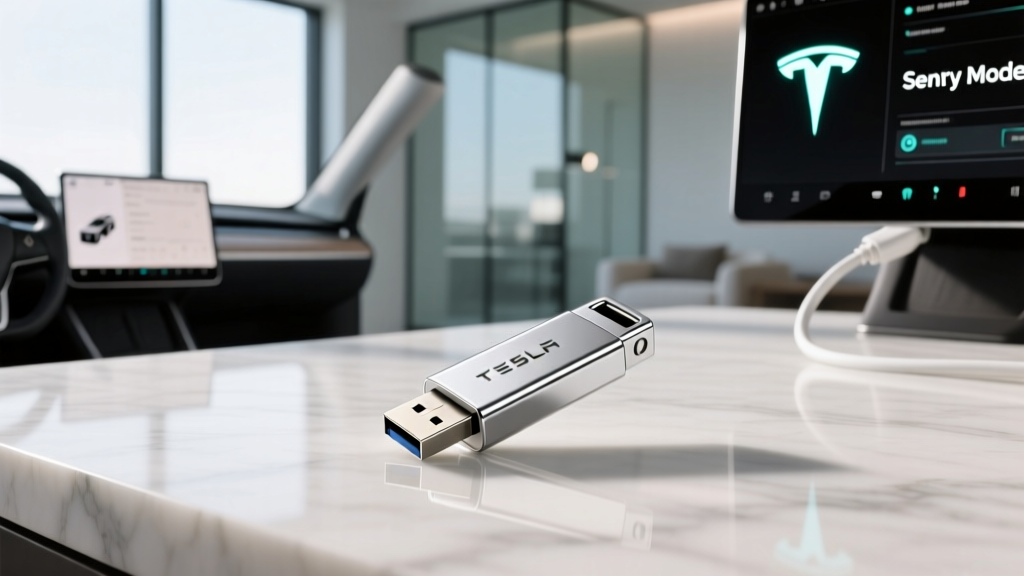
Sentry Mode is one of Tesla's most valuable software features, turning your car's cameras into a 24/7 security system that records threats, deters break-ins, and provides evidence when incidents occur. But it relies entirely on one small, inexpensive component: a USB storage drive. Pick the wrong one, and you'll face corrupted footage, missed events, or constant write errors. Pick the right one, and Sentry Mode runs silently in the background for years without issue.
This guide covers the best USB drives for Tesla Sentry Mode in 2026, how to set them up correctly, how much storage you actually need, and the real impact Sentry Mode has on your Tesla's battery and range — including how that fits into the broader ownership picture of today's Tesla lineup.
Why Sentry Mode Demands a Specific Type of USB Drive
Sentry Mode isn't passive. When enabled, it continuously buffers footage from up to eight external cameras, writing to storage whenever it detects a threat (Sentry events) or when you manually save a clip. Dashcam recording adds continuous loop recording while driving. Together, these features generate heavy, sustained write cycles that destroy ordinary USB flash drives within months.
Standard consumer thumb drives use low-endurance NAND flash designed for occasional file transfers, not constant overwriting. Under Sentry Mode's write load, these drives develop bad sectors, throw write-protection errors, or simply fail — often without warning. The solution is a high-endurance USB drive or a microSD card in a USB adapter rated for continuous video recording.
Best USB Drives for Tesla Sentry Mode in 2026
After testing drives across multiple Tesla models and reviewing long-term owner reports, these are the most reliable options currently available:
| Drive | Type | Capacity | Endurance Rating | Read/Write Speed | Approx. Price |
|---|---|---|---|---|---|
| Samsung PRO Endurance microSD + USB-C adapter | microSD in adapter | 128GB / 256GB | Up to 140,000 hrs (256GB) | 160/120 MB/s | $22–$38 |
| SanDisk High Endurance microSD + adapter | microSD in adapter | 128GB / 256GB | Up to 120,000 hrs (256GB) | 150/90 MB/s | $18–$32 |
| Samsung FIT Plus USB 3.1 | Compact USB-A | 128GB / 256GB | Moderate (better than standard) | 400/110 MB/s | $16–$28 |
| Kingston Canvas Go! Plus microSD + adapter | microSD in adapter | 128GB / 256GB | High (video-surveillance rated) | 170/90 MB/s | $20–$34 |
Our top pick: The Samsung PRO Endurance 256GB microSD paired with a quality USB-C (or USB-A) adapter. The endurance rating dwarfs standard drives, the form factor sits nearly flush in Tesla's center console or glovebox port, and the 256GB capacity stores weeks of Sentry events before overwriting older footage.
How Much Storage Do You Actually Need?
Tesla Sentry Mode clips are typically 10 minutes long and recorded from multiple camera angles. A single Sentry event (triggered by motion or impact) generates roughly 30–60 MB of footage depending on resolution and the number of cameras involved. Dashcam loop recording while driving consumes approximately 1 GB per hour of combined multi-camera footage.
Here's how capacity translates to real-world storage:
- 64GB: Minimum viable. Stores roughly 1,000–1,500 Sentry events. Overwrites quickly in busy parking areas. Adequate only if you check footage frequently.
- 128GB: Recommended baseline. Stores 2,500–3,500 events. Comfortable for most owners who review clips weekly.
- 256GB: Ideal for heavy Sentry use (urban parking, frequent travel). Stores 5,000–7,000 events. Allows months of dashcam loops before overwriting.
- 512GB+: Overkill for most, but useful if you also store media (music, videos) on a separate partition.
Step-by-Step: Formatting Your USB Drive for Tesla
Tesla requires the exFAT file system (MS-DOS/FAT32 works on older software versions but exFAT is preferred for drives over 32GB). Here's the process:
- Insert the drive into your laptop. Back up any existing data — formatting erases everything.
- Format to exFAT. On Windows: right-click the drive → Format → select exFAT. On Mac: open Disk Utility → Erase → select exFAT.
- Create a folder named
TeslaCam(case-sensitive) in the root directory of the drive. - Insert the drive into your Tesla's USB port. For vehicles built after ~2020 with the glovebox USB port, use that port — it's the designated data port for Sentry/Dashcam. USB-A ports in the front console may be charge-only on newer Model 3/Y refreshes.
- On the Tesla touchscreen, go to Controls → Safety → Sentry Mode and confirm it's enabled. The dashcam icon should appear in the top status bar, confirming the drive is recognized.
If the drive isn't recognized, try reformatting on the Tesla itself: Controls → Safety → Security → Format USB Drive. This handles the file system and folder creation automatically.
Sentry Mode's Impact on Battery and Range
Sentry Mode keeps the car's computers and cameras partially active, drawing power from the high-voltage battery even when parked. Understanding this draw is essential for owners who rely on Sentry daily.
For a Tesla Model Y Long Range with an EPA-estimated 320 miles of range and a ~75 kWh usable battery (NMC chemistry), that translates to roughly 1–1.5 kWh of energy draw per hour in Sentry Mode. Over a week of parking in a busy urban area where Sentry triggers frequently, you could lose 15–25 miles of range — noticeable but manageable if you charge at home nightly.
Tesla allows you to set a minimum State of Charge (SoC) threshold: Sentry Mode automatically disables when the battery drops below 20% to prevent excessive drain. You can adjust this in Controls → Safety → Sentry Mode settings.
Tesla Sentry Mode in Context: Current Model Specs
If you're evaluating a Tesla purchase and Sentry Mode is a priority, here's how the current 2026 lineup stacks up — since Sentry's battery impact matters more on smaller batteries:
| Model / Trim | EPA Range | Battery (kWh / Chemistry) | Max DC Charge | 10–80% Time | Level 2 Rate | 0–60 mph | HP | Base MSRP |
|---|---|---|---|---|---|---|---|---|
| Model 3 RWD | 363 mi | ~60 kWh / LFP | 170 kW | ~25 min | 11.5 kW (~44 mi/hr) | 5.8s | 283 | $38,990 |
| Model 3 Long Range AWD | 363 mi | ~75 kWh / NMC | 250 kW | ~18 min | 11.5 kW (~44 mi/hr) | 4.2s | 346 | $44,990 |
| Model Y Long Range AWD | 320 mi | ~75 kWh / NMC | 250 kW | ~20 min | 11.5 kW (~44 mi/hr) | 4.8s | 384 | $44,990 |
| Model S LR | 402 mi | ~100 kWh / NMC | 250 kW | ~22 min | 11.5 kW (~44 mi/hr) | 3.1s | 670 | $79,990 |
Sources: fueleconomy.gov, Tesla.com specifications.
Federal Tax Credit and Pricing: What Sentry-Equipped Teslas Cost
Under IRS §30D rules, Tesla models may qualify for up to $7,500 in federal tax credits — but eligibility depends on three factors that change periodically:
- MSRP caps: Vans, SUVs (including Model Y), and trucks must be under $80,000. Sedans (Model 3, Model S) must be under $55,000.
- Buyer income limits: Modified adjusted gross income cannot exceed $150,000 (single), $225,000 (head of household), or $300,000 (joint filing).
- Battery sourcing requirements: Critical minerals and battery components must meet escalating domestic/free-trade-partner sourcing thresholds. Tesla's shifting supply chain means eligibility can change month to month.
| Model / Trim | Base MSRP | As-Tested (Typical Config) | Est. §30D Credit | Effective Price |
|---|---|---|---|---|
| Model 3 RWD | $38,990 | $40,490 | $7,500* | ~$32,990* |
| Model 3 LR AWD | $44,990 | $47,490 | $3,750–$7,500* | ~$39,990–$43,740* |
| Model Y LR AWD | $44,990 | $48,490 | $3,750–$7,500* | ~$40,990–$44,740* |
| Model S LR | $79,990 | $84,990 | $0 (over sedan cap) | $79,990+ |
*Credit amounts depend on current battery-sourcing compliance and buyer income. Point-of-sale transfer is available at purchase. Always verify current eligibility on fueleconomy.gov before purchasing. Consult a tax professional for personal eligibility.
Tesla Sentry Mode vs. Competitor Dashcam Systems
Tesla isn't the only automaker offering built-in vehicle surveillance, but its implementation remains the most comprehensive:
- Tesla Sentry Mode: Uses all external cameras (up to 8), AI-driven threat detection, automatic clip saving, live camera access via the Tesla app (on supported models), and integration with the vehicle's alarm system. Requires only a USB drive — no subscription for basic recording.
- BMW Dashcam / Mercedes Dashcam: Typically single forward-facing camera, limited to recording while driving or on impact. Less comprehensive coverage, often requires OEM accessory purchase.
- Hyundai/Kia built-in dashcam: Available on some models via the infotainment system, but usually forward-only with limited Sentry-like parking surveillance.
- Aftermarket dashcams (Vantrue, Garmin, BlackVue): Can match or exceed Tesla's video quality with dedicated hardware and parking-mode motion detection, but require separate installation, wiring, and often a dedicated battery pack to avoid draining the 12V system.
Tesla's advantage is the seamless integration and multi-camera coverage. The drawback: video resolution, while improved with Hardware 4.0 cameras, still lags behind dedicated 4K dashcams in low-light detail and wide-angle clarity.
Troubleshooting Common Sentry Mode USB Issues
Even with a good drive, Sentry Mode occasionally throws curveballs. Here are the most common problems and fixes:
"USB Drive Not Detected" or Dashcam Icon Missing
Re-seat the drive firmly. If using a USB-C adapter with a microSD card, ensure the adapter is fully inserted — Tesla's ports can be tight. Try reformatting via the Tesla touchscreen (Controls → Safety → Security → Format USB Drive).
Clips Are Corrupted or Won't Play
This usually indicates a failing drive. Low-endurance USB drives develop bad sectors under Sentry's write load. Replace with a high-endurance microSD and reformat. Check clips on your computer using VLC media player, which handles Tesla's MP4 files more reliably than native OS players.
Sentry Mode Disabled Unexpectedly
Check your SoC threshold setting — Sentry auto-disables below 20% by default. Also verify that "Exclude Home" or "Exclude Work" location settings aren't active (Controls → Safety → Sentry Mode → Exclude Locations). These settings disable Sentry at saved addresses.
Slow or Missing Notifications
Sentry Mode alerts (via the Tesla app) require the vehicle to have cellular connectivity. If your car is in an underground garage with poor signal, alerts will be delayed until the car reconnects. Live camera viewing via the app also requires a strong cellular signal at the vehicle's location.
Pros and Cons of Tesla's Sentry Mode System
Pros
- Multi-camera coverage (up to 8 angles)
- No subscription required for recording
- Automatic threat detection and clip saving
- Live camera access via app (HW4.0 vehicles)
- Integrates with alarm and notification system
- Simple setup — just a USB drive
Cons
- Parasitic battery drain (~1–2 mi range/hr)
- Video quality below dedicated 4K dashcams
- Requires high-endurance drive (recurring cost)
- App alerts delayed in poor cell coverage areas
- Cannot record interior cabin (no inward camera use)
- Increased cold-weather range loss when parked
Frequently Asked Questions
Can I use a regular USB thumb drive for Tesla Sentry Mode?
You can, but it will likely fail within 3–6 months under Sentry Mode's constant write cycles. Standard thumb drives aren't designed for surveillance-grade continuous recording. Invest in a high-endurance microSD card with a USB adapter — the $20–$35 premium prevents data loss and frustration.
Does Sentry Mode work without a USB drive?
No. Sentry Mode requires a properly formatted USB storage device to save clips. Without one, the system can detect and display threats on the touchscreen (the "Sentry Mode is watching you" warning), but it cannot record or save footage for later review.
How do I view Sentry Mode clips?
Tap the dashcam icon on the Tesla touchscreen to browse recent clips directly in the car. Alternatively, remove the USB drive and plug it into a computer — clips are organized in dated folders under the TeslaCam directory. On vehicles with Hardware 4.0 and recent software, you can also view recent clips via the Tesla mobile app.
Will Sentry Mode drain my Tesla battery to zero?
No. Tesla sets a default 20% SoC minimum — Sentry Mode automatically disables when the battery reaches this threshold to preserve enough charge for driving. You can adjust this minimum in settings, but lowering it risks being stranded with insufficient range.
Does the Tesla Model 3 RWD (LFP battery) handle Sentry Mode differently?
The LFP (lithium iron phosphate) battery in the Model 3 RWD has a smaller usable capacity (~60 kWh vs. ~75 kWh in Long Range models), so Sentry Mode's parasitic drain represents a slightly larger percentage of total range per hour. However, LFP chemistry tolerates frequent partial cycling well, and Tesla recommends charging LFP batteries to 100% regularly — so nightly top-ups easily offset Sentry's overnight draw.
What's the best USB port to use for Sentry Mode in my Tesla?
For vehicles equipped with a glovebox USB port (most Teslas built from 2020 onward), use the glovebox port — it's the designated data port for Sentry/Dashcam and keeps the drive hidden and secure. On the refreshed Model 3 (Highland) and newer Model Y builds, some console USB-C ports are charge-only; the glovebox port remains the reliable data connection.
How long do high-endurance microSD cards last under Sentry Mode?
A Samsung PRO Endurance 256GB card rated for 140,000 hours of continuous recording should last 5+ years under typical Sentry Mode use (which isn't truly continuous — it buffers and writes in bursts). Most owners report 3–5 years of reliable service before noticing degradation, at which point a $30 replacement is trivial.
Always verify current Tesla software features and tax credit eligibility through Tesla's official support pages and IRS.gov, as both change with software updates and legislation.