If you own a Tesla, you already have one of the most sophisticated dashcam systems on the road — you just might not know how to use it. Every current Tesla (Model 3, Model Y, Model S, and Model X) ships with a multi-camera recording suite that doubles as a dashcam and a parked-vehicle security system called Sentry Mode. But finding, reviewing, and exporting that footage isn't always intuitive, especially after Tesla's interface updates over the past few years.
This guide walks you through exactly how the Tesla dashcam viewer works in 2026, how to access clips on the car's touchscreen and on your phone, how to export footage for insurance claims, and what storage and battery-drain trade-offs you should know about. We'll also cover which current Tesla models support these features and how the underlying vehicle specs — from range to charging — affect your decision to leave Sentry Mode on.
How the Tesla Dashcam System Works
Tesla's dashcam system uses the same cameras that power Autopilot and FSD (Supervised) — the vehicle's SAE Level 2 driver-assistance suite. Up to eight external cameras can record simultaneously, though the dashcam viewer typically surfaces clips from the front, rear, left-repeater, and right-repeater cameras.
There are two recording modes:
- Dashcam (manual/automatic): Records while driving. Saves the last 10 minutes when you tap the dashcam icon, or auto-saves clips when the car detects a collision or sudden braking event.
- Sentry Mode: Records when the car is parked and locked, activating cameras when motion or threats are detected near the vehicle.
Accessing the Dashcam Viewer on the Touchscreen
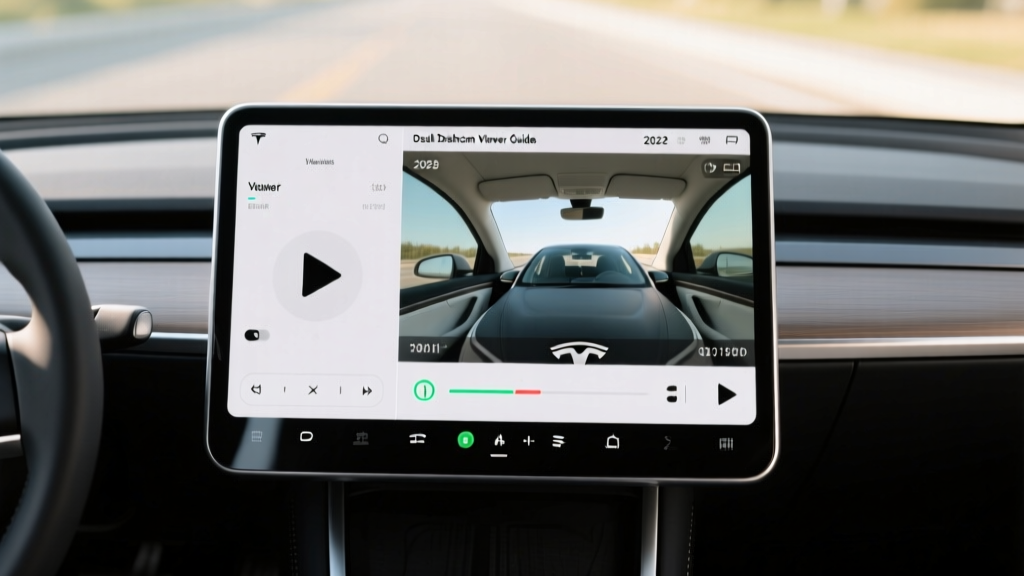
The in-car dashcam viewer is accessed through the Tesla touchscreen. Here's the workflow as of the 2025–2026 software releases (v12.x and later):
- Tap the Dashcam icon (camera symbol) in the app launcher or status bar at the top of the screen.
- The viewer opens to a grid of recent clips, organized by date and event type (Saved, Sentry, Auto-Save).
- Tap any clip to play it. You'll see a multi-camera view — typically front, rear, and both side repeaters — with timestamps overlaid.
- Use the scrub bar to navigate within a clip. Clips are typically 1 minute each, so a 10-minute save produces 10 individual files per camera angle.
- Tap the trash icon to delete clips you no longer need, freeing up USB storage.
Pro tip: The touchscreen viewer is adequate for a quick check at the scene of an incident, but it's not ideal for detailed review. Camera resolution on the touchscreen is limited by screen size, and you can't zoom effectively. For insurance claims or police reports, export the footage to a computer (see below).
Exporting Tesla Dashcam Footage: USB, App & Wireless Methods
Tesla stores dashcam and Sentry Mode footage on a USB drive (or, on newer 2023+ Highland Model 3 and Juniper Model Y vehicles, on built-in storage). Here's how to get clips off the car:
Method 1: USB Drive (Traditional)
If your Tesla uses a USB drive for dashcam storage (common in pre-2024 Model S/X and some Model 3/Y):
- Ensure the USB drive is formatted as exFAT with a folder named TeslaCam at the root.
- Remove the drive from the car's glovebox USB port.
- Insert it into a computer. You'll find subfolders:
SavedClips,SentryClips, andRecentClips. - Each folder contains timestamped .mp4 files organized by camera angle (front, back, left_repeater, right_repeater).
Method 2: Tesla App (Wireless, Newer Vehicles)
For vehicles with built-in dashcam storage (2024+ Model 3 Highland, 2025+ Model Y Juniper, refreshed Model S/X):
- Open the Tesla app on your phone.
- Navigate to Sentry Mode / Dashcam in the vehicle menu.
- Browse recent clips and tap to download directly to your phone's camera roll.
- Clips transfer over Wi-Fi or cellular, though large Sentry events can be 50–100 MB each.
Method 3: Wi-Fi Transfer to Laptop
Some owners use the car's built-in Wi-Fi hotspot or connect the car to a home network to pull files via the TeslaCam web interface — though this method is less officially documented and varies by software version.
Sentry Mode: Battery Drain, Storage & Real-World Costs
Sentry Mode is one of Tesla's most valuable features, but it comes with measurable trade-offs:
| Model | Battery (kWh) | Sentry Drain (mi/24hr) | Sentry Drain (kWh/24hr) | Clip Storage |
|---|---|---|---|---|
| Model 3 (2026) | 60 (LFP) / 79 (NMC) | ~15–25 mi | ~3–5 kWh | Built-in / USB |
| Model Y (2026) | 60 (LFP) / 79 (NMC) | ~15–25 mi | ~3–5 kWh | Built-in / USB |
| Model S (2026) | 100 (NMC) | ~20–30 mi | ~4–6 kWh | Built-in |
| Model X (2026) | 100 (NMC) | ~20–30 mi | ~4–6 kWh | Built-in |
What this means in practice: If you leave Sentry Mode on 24/7 in a busy urban area (where it triggers frequently), expect to lose roughly 15–30 miles of range per day. Over a week of airport parking, that's 100–200 miles of range consumed. For most commuters who enable Sentry at work and overnight, the impact is 5–10 miles per day — manageable if you charge at home nightly.
Sentry Mode automatically disables when the battery drops below 20% State of Charge to prevent stranding.
Current Tesla Lineup: Range, Charging & Specs (2026)
Since the dashcam system is integrated across all Tesla models, here's a quick-reference spec table for the 2026 lineup so you can evaluate which vehicle fits your needs alongside the dashcam/Sentry features:
| Spec | Model 3 LR AWD | Model Y LR AWD | Model S LR | Model X LR |
|---|---|---|---|---|
| EPA Range | 341 mi | 320 mi | 402 mi | 348 mi |
| Real-World Range | ~275–300 mi (hwy) | ~260–285 mi (hwy) | ~330–360 mi (hwy) | ~280–310 mi (hwy) |
| Battery (usable kWh) | 79 kWh (NMC) | 79 kWh (NMC) | 100 kWh (NMC) | 100 kWh (NMC) |
| Max DC Fast Charge | 250 kW | 250 kW | 250 kW | 250 kW |
| 10–80% DCFC Time | ~25 min | ~27 min | ~30 min | ~32 min |
| Level 2 (mi/hr @ 11.5 kW) | ~44 mi/hr | ~42 mi/hr | ~41 mi/hr | ~38 mi/hr |
| 0–60 mph | 4.2 sec | 4.8 sec | 3.1 sec | 3.8 sec |
| Horsepower | 346 hp | 384 hp | 670 hp | 670 hp |
| Drivetrain | Dual-motor AWD | Dual-motor AWD | Dual-motor AWD | Dual-motor AWD |
| MPGe (combined) | 132 MPGe | 122 MPGe | 124 MPGe | 111 MPGe |
| Cargo (cu ft, rear seats up) | 23 cu ft | 30 cu ft | 28 cu ft | 42 cu ft |
| Base MSRP | $47,740 | $49,630 | $79,990 | $84,990 |
Tesla Dashcam Storage: USB vs. Built-In (What Changed)
One of the biggest shifts in Tesla's dashcam system came with the Model 3 Highland refresh (late 2023) and Model Y Juniper (2025). Tesla moved to built-in solid-state storage for dashcam and Sentry Mode clips, eliminating the need for a user-supplied USB drive.
What this means for the dashcam viewer experience:
- Reliability: No more corrupted USB drives or improperly formatted sticks causing "dashcam not recording" errors.
- Speed: Built-in storage is faster, so clip saving is more reliable during sudden events.
- App access: Wireless clip download to the Tesla app works seamlessly since clips are stored on the car's internal drive.
- Limitation: You can't simply swap in a larger drive. Built-in storage is typically 64–128 GB, which holds roughly 500–1,000 one-minute clips depending on camera count and resolution.
For older Teslas still using USB, we recommend a high-endurance microSD card (SanDisk High Endurance or Samsung PRO Endurance, 128 GB minimum) in a USB adapter. Standard cards fail quickly under dashcam's constant write cycles.
Federal Tax Credit & Pricing: Which Teslas Qualify?
Understanding the IRS §30D clean vehicle credit is critical when pricing a Tesla. Here's the 2026 landscape:
| Model | Base MSRP | MSRP Cap | Est. Credit | Notes |
|---|---|---|---|---|
| Model 3 RWD | $38,990 | $55,000 (sedan) | Up to $7,500 | Battery sourcing may reduce credit to $3,750 |
| Model 3 LR AWD | $47,740 | $55,000 (sedan) | Up to $7,500 | Check critical-mineral + battery-component rules |
| Model Y LR AWD | $49,630 | $80,000 (SUV) | Up to $7,500 | Classified as SUV — higher MSRP cap |
| Model S / X | $79,990+ | $55K / $80K | $0 | Model S exceeds sedan cap; Model X may qualify at base |
Using Tesla Dashcam Footage for Insurance Claims
One of the most practical reasons to understand the dashcam viewer is for post-incident evidence. Here's what works best:
- At the scene: Tap the dashcam icon immediately to save the last 10 minutes. This prevents the clips from being overwritten by the rolling buffer.
- At home: Export the relevant clips from the USB drive or download via the Tesla app.
- For your insurer: Provide the front-camera clip as primary evidence, with side-repeater clips as supplementary. Include the timestamp and GPS data embedded in the file metadata.
- For police reports: Save clips to a standard USB drive and provide it directly, or upload to a file-sharing link if the department accepts digital evidence.
Limitation: Tesla dashcam footage does not include audio recording (for privacy and legal compliance). It also records at roughly 1280×960 per camera — adequate for identifying vehicles and events, but not always sufficient for reading license plates at distance or high speed.
Dashcam Settings & Customization Tips
Tesla provides several settings to fine-tune the dashcam experience:
- Auto-save sensitivity: In Settings → Safety → Dashcam, choose between Auto, On, or Off for automatic event saving. "Auto" saves clips when the car detects airbag deployment, collision, or hard braking.
- Sentry Mode exclusions: Exclude specific locations (home, work) from Sentry recording to reduce battery drain and storage clutter in safe environments.
- Viewer camera selection: In the touchscreen viewer, tap individual camera panels to expand them full-screen for closer inspection.
- Clip retention: The system overwrites the oldest
RecentClipsfirst. Saved clips and Sentry clips are protected from auto-deletion until storage is nearly full — at which point the oldest Sentry clips are purged.
Tesla Dashcam vs. Aftermarket Dashcams: What's the Trade-Off?
Tesla Built-In Dashcam — Pros
- No extra hardware or wiring
- Multi-camera (4-angle) coverage standard
- Integrated Sentry Mode for parked security
- App-based remote clip access (newer vehicles)
- No windshield obstruction
Tesla Built-In Dashcam — Cons
- ~1280×960 resolution per camera (lower than 4K aftermarket units)
- No audio recording
- No interior cabin camera recording (for rideshare)
- Limited frame rate (~30 fps) — may miss fast events
- Sentry Mode battery drain (3–6 kWh/day)
- Footage access requires understanding Tesla's file system
Verdict: For most Tesla owners, the built-in system is sufficient for insurance claims, hit-and-run documentation, and parking-lot incidents. If you need 4K resolution, cabin recording (for Uber/Lyft), or audio, supplement with a dedicated aftermarket dashcam like a BlackVue or Vantrue. But for 90% of use cases, Tesla's cameras are already doing the job — you just need to know how to access the footage.
FAQ: Tesla Dashcam Viewer Questions Answered
Does Tesla record dashcam footage all the time?
The dashcam continuously buffers the last 10 minutes of driving in a rolling loop, but it only saves clips when you manually tap the dashcam icon or when an auto-save event (collision, hard braking) is triggered. Sentry Mode saves clips when motion or threats are detected while parked.
Can I view Tesla dashcam footage on my phone?
Yes. On 2024+ vehicles with built-in storage, the Tesla app lets you browse and download dashcam and Sentry clips wirelessly. On older vehicles with USB storage, you must remove the USB drive and view clips on a computer or phone with a USB-OTG adapter.
How long does Tesla keep dashcam footage?
RecentClips (the rolling buffer) are overwritten continuously. SavedClips and SentryClips persist until storage is nearly full, at which point the oldest files are deleted. With a 128 GB USB drive, expect to store roughly 1,000 one-minute clips before overwriting begins.
Does Sentry Mode drain the battery significantly?
Yes — expect 15–30 miles of range loss per 24 hours depending on how many events trigger the cameras. In a busy urban parking lot, that can reach the higher end. Set Sentry exclusions for your home and workplace to minimize unnecessary drain.
Does the Tesla dashcam record audio?
No. Tesla's dashcam and Sentry Mode do not record audio. This is a deliberate design choice for privacy and legal compliance across jurisdictions with varying wiretapping laws.
What resolution is Tesla's dashcam footage?
Tesla's external cameras record at approximately 1280×960 pixels per camera at roughly 30 fps. This is adequate for documenting incidents but lower than dedicated 4K dashcams. License plate readability depends on distance, lighting, and relative speed.
Sources: Tesla Model 3 specifications, fueleconomy.gov, IRS §30D Clean Vehicle Credit.