The Blazer EV Launch: Context on Reliability Issues
The Chevrolet Blazer EV, built on General Motors' highly anticipated Ultium battery platform, was supposed to be a watershed moment for mainstream electric SUVs. However, its initial rollout was marred by significant software gremlins that affected everything from infotainment stability to DC fast charging reliability. In late 2023, GM even took the unprecedented step of temporarily halting sales to address these critical software bugs. While over-the-air (OTA) updates and dealer-applied patches have vastly improved the vehicle's reliability, owners and prospective buyers still encounter specific range estimation and charging handshake issues that require targeted troubleshooting.
If you are experiencing erratic range readings or charging faults, you are not alone. According to Car and Driver's comprehensive Blazer EV coverage, many of the early hardware and software integration bugs have been smoothed out, but the vehicle's complex Battery Management System (BMS) and ULVIO software architecture still require owners to follow specific protocols to ensure optimal performance. This guide provides actionable, step-by-step troubleshooting for the most common Chevy Blazer EV range and charging problems.
Troubleshooting DC Fast Charging Failures
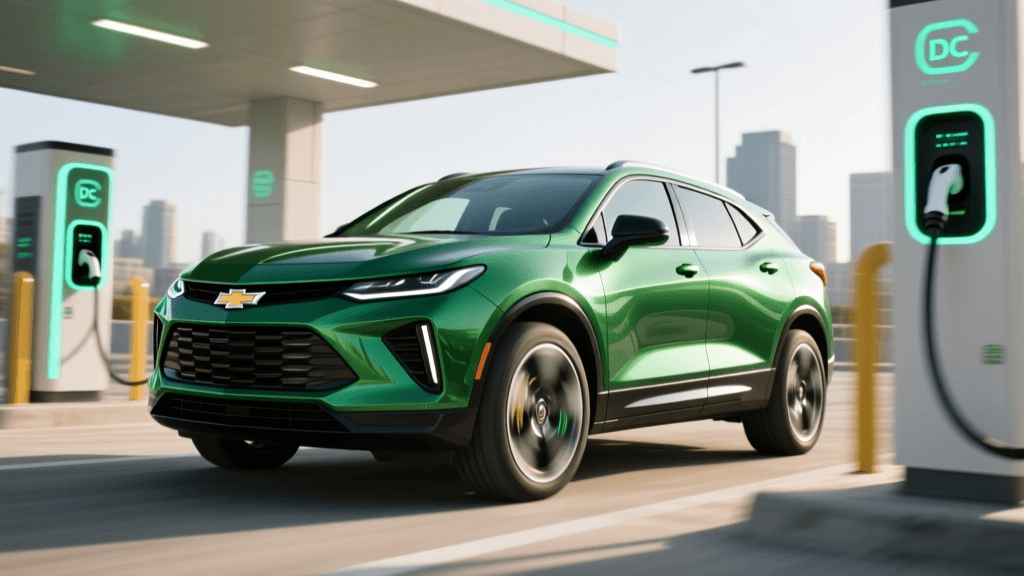
One of the most frustrating issues reported by Blazer EV owners is the 'Handshake Failure' at public DC Fast Charging (DCFC) stations. You plug in, wait for the contactors to click, and instead of a charging session, the infotainment screen displays a 'Charging Fault' or 'Unable to Charge' message. Here is how to troubleshoot and resolve this.
1. The Preconditioning Protocol
The Ultium battery requires optimal thermal conditions to accept a high-voltage DC charge. If the battery is too cold or too hot, the BMS will restrict or block the charge to protect the cells. Always use the vehicle's native navigation system to route to the charging station. Even if you know the way, entering the charger as your destination triggers the battery preconditioning sequence, warming or cooling the pack to the ideal temperature for a seamless handshake.
2. The Plug Sequence and CCS Pin Alignment
The CCS (Combined Charging System) plug is heavy and the pins can sometimes misalign with the vehicle's charge port receptacle. When inserting the plug, push it in firmly until you hear the mechanical latch click. Do not let go immediately. Hold the plug level and steady for three full seconds after the click. This ensures the proximity pilot pins make solid contact before the vehicle's onboard charger attempts to communicate with the station. If you let the heavy cable droop immediately, the communication pins may disconnect, triggering a fault.
3. Station-Side Resets
If the Blazer EV still rejects the charge, the fault may lie with the station's outdated firmware struggling to communicate with GM's newer ULVIO software. Unplug, move the vehicle to a different stall at the same location, or use an app like PlugShare to find a newer 350kW Electrify America or EVgo station, which tend to have better handshake compatibility with the Ultium platform.
Fixing Range Estimation and BMS Inaccuracies
The Blazer EV's 'Guess-O-Meter' (the estimated range displayed on the driver information center) has been a point of contention. Some owners report the range dropping drastically overnight, while others see the estimated miles fail to recover fully after a 100% charge. This is rarely a sign of battery degradation; rather, it is a BMS calibration error.
As noted in the EPA's guidelines on electric vehicle battery basics, extreme temperatures and repeated partial charging can cause the BMS to lose track of the true state of charge (SoC) at the top and bottom of the battery's capacity. To recalibrate the Blazer EV's BMS and restore accurate range estimation, follow this exact procedure:
- Step 1: Drive the vehicle down to a low state of charge, ideally between 10% and 15%. Avoid letting it hit 0% to prevent bricking the 12V accessory battery.
- Step 2: Park the vehicle and let it sit overnight (at least 8 hours) so the battery cells can balance and the BMS can accurately read the lower voltage limits.
- Step 3: Plug into a Level 2 home charger and set the charge limit to 100% via the infotainment screen or the myChevrolet app.
- Step 4: Once the vehicle reaches 100%, leave it plugged in for an additional two hours. This allows the BMS to perform top-end cell balancing and recalibrate the upper voltage limits.
Performing this deep-cycle recalibration once every few months will drastically improve the accuracy of your range estimation.
Table: Common Blazer EV Charging & Range Errors & Fixes
| Symptom / Error Message | Probable Cause | Actionable Fix |
|---|---|---|
| 'Charging Fault - See Owner's Manual' at DCFC | CCS handshake timeout or thermal restriction. | Precondition via nav; hold plug level for 3 seconds; try a different stall. |
| Range drops 15-20% overnight while parked | Phantom drain from sentry features or 12V battery charging. | Disable 'Location Based Charging' delays; check for stuck OTA update processes. |
| Charge limit stuck at 80% despite 100% setting | Software glitch in the Energy Management menu. | Perform a soft reset (hold mute button on steering wheel for 15 seconds). |
| Infotainment black screen while charging | ULVIO software memory leak during high-voltage transfer. | Reboot infotainment; ensure latest OTA patch is installed via Wi-Fi. |
Navigating the NACS Adapter and Supercharger Network
With GM's transition to the North American Charging Standard (NACS), Blazer EV owners now have access to the Tesla Supercharger network using a GM-approved NACS adapter. However, this introduces a new layer of troubleshooting. The physical adapter adds weight and leverage to the Blazer's charge port, which can sometimes cause the port's internal locking pin to fail to engage.
When using the NACS adapter at a Supercharger, ensure you support the weight of the adapter and the Tesla cable from underneath as you insert it. Push straight in until the vehicle's charge port light pulses blue, indicating a successful digital handshake. If the light flashes red, the adapter is not fully seated. Furthermore, always initiate the charge via the Tesla app or the vehicle's infotainment screen before walking away, as the Supercharger network requires an active digital token to begin dispensing power.
Level 2 Home Charging Troubleshooting
Many Blazer EV owners utilize the Chevy Dual Level Charge Cord or a third-party Wallbox for home charging. A common issue is the vehicle refusing to start a scheduled charging session. This is often caused by a conflict between the vehicle's internal 'Location Based Charging' settings and the charger's own smart scheduling.
To solve this, establish a single source of truth for your charging schedule. If you use a smart charger, disable all scheduling features inside the Blazer EV's infotainment menu (Settings > Vehicle > Energy > Charging). Let the charger handle the timing. Conversely, if you are using a 'dumb' Level 2 wallbox, use the myChevrolet app to set your departure times and charging windows. Additionally, ensure your NEMA 14-50 outlet is properly grounded; the Blazer EV's onboard charger is highly sensitive to ground faults and will immediately halt charging if it detects irregular voltage drops.
Over-the-Air (OTA) Updates: The Ultimate Fix
The vast majority of the Blazer EV's early charging and range bugs have been addressed via GM's ULVIO software updates. However, these updates require a strong Wi-Fi connection to download. Cellular networks are generally only used for small telemetry packets, not multi-gigabyte OS patches. To ensure your vehicle receives the latest charging protocol fixes, park your Blazer within range of your home Wi-Fi network, go to Settings > System > Software Update, and manually check for updates. Leave the vehicle powered on and locked until the installation completes.
When to Escalate to the Dealer
While software resets and BMS recalibrations solve 90% of range and charging anomalies, hardware issues do occur. If your Blazer EV consistently fails to charge on multiple known-good DCFC networks, or if you notice a significant, unrecoverable drop in total battery capacity after a BMS recalibration, it is time to visit the service center. Before your appointment, always check the NHTSA safety recall database using your VIN to see if there are any active service campaigns related to the high-voltage battery contactors or the charge port assembly. Documenting your charging logs via the myChevrolet app and presenting them to the service advisor will drastically reduce diagnostic time and get your Ultium-powered SUV back on the road faster.