If you own a Tesla, the built-in dashcam is one of the most underutilized safety features in your vehicle. Unlike aftermarket dashcams that require separate wiring and memory cards, Tesla's integrated camera system leverages the Autopilot hardware already on your car to record, store, and let you review driving footage directly from the touchscreen — or through third-party Tesla dashcam viewer tools on your phone or computer. This guide breaks down exactly how Tesla's dashcam system works in 2026 model-year vehicles, how to use the onboard viewer and export clips, and what the real impact is on your battery, range, and storage.
How Tesla's Dashcam System Works in 2026
Tesla's dashcam uses the same cameras that power Autopilot and FSD (Supervised) — the forward-facing, left repeater, right repeater, and rear-view cameras. When enabled, the system continuously records rolling footage to a USB drive (or, in newer 2025+ vehicles with Hardware 4.0, to built-in storage). The onboard Tesla dashcam viewer lets you scrub through recent clips, mark events, and save important footage before it's overwritten.
There are two recording modes:
- Dashcam mode: Records while driving. Saves the last 10 minutes when you tap the dashcam icon or when a collision is detected.
- Sentry Mode: Records when the car is parked and locked, activating cameras when motion or impacts are detected near the vehicle.
Both modes write to a TeslaCam folder on your formatted USB drive (or internal SSD in HW4 vehicles). Footage is organized by date and event type: RecentClips, SavedClips, and SentryClips.
Using the Onboard Tesla Dashcam Viewer
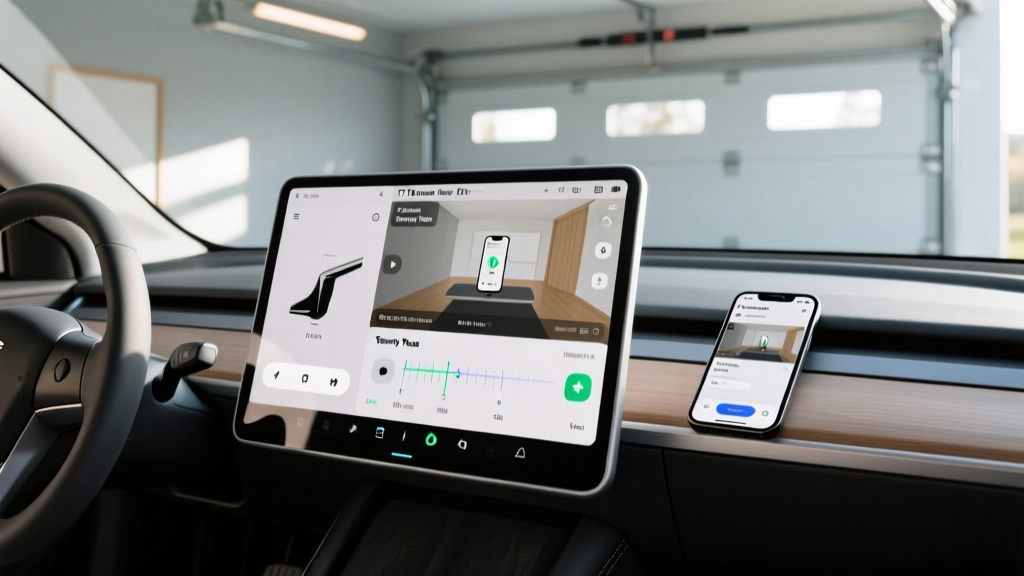
The built-in viewer is accessible from the car's touchscreen. Here's how to navigate it:
- Tap the Dashcam icon in the app launcher (bottom of the screen).
- Use the timeline scrubber to review footage from all four cameras simultaneously.
- Tap the Save button (bookmark icon) to move the last 10 minutes to
SavedClips— preventing auto-deletion. - Use the trash icon to delete clips you don't need.
The viewer supports playback at 1x speed only (no fast-forward or slow-motion on the car screen). For detailed review — zooming, frame-by-frame analysis, or sharing with insurance — you'll need to export the footage.
Exporting and Reviewing Tesla Dashcam Footage Off-Vehicle
Tesla records in MP4 format, with each clip lasting 60 seconds. When you export footage, you'll find separate files for each camera angle, timestamped and named systematically:
| Folder | Content | Retention |
|---|---|---|
| RecentClips | Rolling 60-second segments, last ~60 minutes | Auto-overwritten continuously |
| SavedClips | Manually saved or collision-triggered 10-min segments | Persists until manually deleted or drive is full |
| SentryClips | Events triggered while parked (10 min each) | Persists until manually deleted or drive is full |
To review footage on a computer or phone, remove the USB drive and plug it in. For a better experience, many owners use third-party Tesla dashcam viewer apps that stitch the four camera angles into a single composite video with overlaid speed, GPS, and G-force data. Popular options in 2026 include TeslaCam Viewer (macOS/Windows), Sentry Viewer (iOS/Android), and Dashcam Viewer by Earthshine (cross-platform). These tools sync multi-angle footage and allow export as a single MP4 — critical for insurance claims or police reports.
USB Drive Requirements and Storage Capacity
Tesla recommends a USB drive rated for continuous write endurance — standard consumer thumb drives will fail within months under dashcam duty. Here's what works:
- Minimum: 64 GB USB 3.0+ drive, formatted exFAT or FAT32
- Recommended: 128-256 GB high-endurance microSD in a USB adapter (Samsung PRO Endurance, SanDisk High Endurance)
- For Sentry Mode heavy users: 256-512 GB SSD-based USB drive
A 128 GB drive holds approximately 24-48 hours of Sentry clips and continuous dashcam footage before overwriting begins. If you park in high-traffic areas where Sentry triggers frequently, upgrade to 256 GB or review and clear clips weekly.
Which Tesla Models Support Dashcam in 2026?
All 2026 Tesla vehicles with Autopilot hardware support dashcam functionality, but there are differences by model and hardware generation:
| Model | Hardware | Dashcam Cameras | Built-in Storage |
|---|---|---|---|
| Model 3 (Highland/2026) | HW 4.0 | Front, Left, Right, Rear | Yes (128 GB internal) |
| Model Y (Juniper/2026) | HW 4.0 | Front, Left, Right, Rear | Yes (128 GB internal) |
| Model S (2026) | HW 4.0 | Front, Left, Right, Rear | Yes |
| Model X (2026) | HW 4.0 | Front, Left, Right, Rear | Yes |
| Cybertruck (2026) | HW 4.0 | Front, Left, Right, Rear | Yes |
Older vehicles with HW 3.0 still support dashcam via USB drive, but the lower-resolution cameras (1.2 MP vs. 5 MP on HW 4.0) produce noticeably softer footage, especially at night or in rain.
Dashcam Impact on Range and Battery
Running the dashcam while driving has negligible energy impact — the cameras are already active for Autopilot, and writing to storage draws under 5 watts. The real battery concern is Sentry Mode:
If you regularly park for extended periods without charging access, consider disabling Sentry Mode or setting location-based exclusions (Home, Work) in the vehicle settings to preserve range.
Tesla Dashcam Viewer: Tips for Insurance Claims and Incidents
Tesla dashcam footage has been accepted as evidence by insurance companies and law enforcement. To maximize its usefulness:
- Save immediately: After any incident, tap Save before the 10-minute window overwrites.
- Export all angles: Insurance adjusters benefit from the multi-camera perspective — don't just share the front view.
- Use a stitching viewer: Third-party tools that overlay speed, GPS coordinates, and timestamps make footage more compelling as evidence.
- Back up to cloud: Upload saved clips to Google Drive, Dropbox, or iCloud as soon as possible — USB drives can be damaged or lost.
- Note the time sync: Tesla's clock can drift; verify timestamps against your phone records if precision matters.
Troubleshooting Common Tesla Dashcam Viewer Issues
Dashcam icon grayed out or not recording
This usually means the USB drive is full, improperly formatted, or has failed. Reformat the drive via the car's touchscreen (Controls → Safety → Format USB Drive) or replace it with a high-endurance model. Ensure the TeslaCam folder exists at the root level.
Sentry Mode clips missing or incomplete
If the vehicle's 12V battery dropped below threshold, Sentry Mode may have shut down early. Check for 12V battery warnings in the Tesla app. Also verify that Sentry Mode isn't excluded for your current location.
Footage too dark or blurry at night
HW 4.0 cameras are significantly better in low light than HW 3.0. If you have older hardware, ensure the windshield and camera housings are clean. Some owners report improved night footage after the 2025.44+ software updates that adjusted exposure algorithms.
Can't view clips on computer
Tesla records in standard MP4 (H.264). If your media player can't open the files, try VLC Media Player. On Mac, the native QuickTime player sometimes struggles with Tesla's multi-file naming convention — a dedicated Tesla dashcam viewer app resolves this.
Frequently Asked Questions
Does Tesla dashcam record audio?
No. Tesla's dashcam system records video only — there is no audio capture. This is a privacy design choice and also simplifies legal compliance across jurisdictions with two-party consent recording laws.
Can I view Tesla dashcam footage on my phone without removing the USB drive?
Not directly. The Tesla app does not currently support remote dashcam clip streaming or download. You must physically remove the USB drive (or internal storage adapter) and connect it to a phone or computer. Some third-party hardware solutions (like the TeslaMate USB hub with Wi-Fi) enable wireless transfer, but these are aftermarket additions.
How long does Tesla keep dashcam footage before overwriting?
RecentClips are continuously overwritten in a rolling loop (typically the last 60 minutes). SavedClips and SentryClips persist indefinitely until the drive is full — at which point the oldest saved clips are deleted to make room. A 128 GB drive holds approximately 30-50 Sentry events before cycling begins.
Does using the dashcam void my Tesla warranty?
No. The dashcam feature is built into Tesla's software and uses factory hardware. Using a USB drive for storage does not affect your vehicle warranty. However, hardwiring aftermarket cameras into the vehicle's electrical system could affect warranty claims related to the 12V system.
Is Tesla's dashcam as good as a dedicated aftermarket dashcam?
For most purposes, yes. HW 4.0 cameras record at 5 MP resolution across four angles simultaneously — exceeding most consumer dashcams. The trade-off is no interior cabin recording (unless you add an aftermarket interior camera) and no audio. For rideshare drivers who need cabin footage, a dedicated interior dashcam is still necessary.
Can police access my Tesla dashcam footage remotely?
No. Tesla does not store dashcam or Sentry Mode footage on its servers — all recordings remain local to your USB drive or internal storage. Law enforcement would need physical access to the drive or a warrant compelling you to provide it. Tesla's privacy policy confirms that camera data from dashcam/Sentry is not transmitted to Tesla unless you explicitly share a clip via the "Share with Tesla" feature for bug reporting.