Why Your Tesla Needs a Dedicated USB Drive
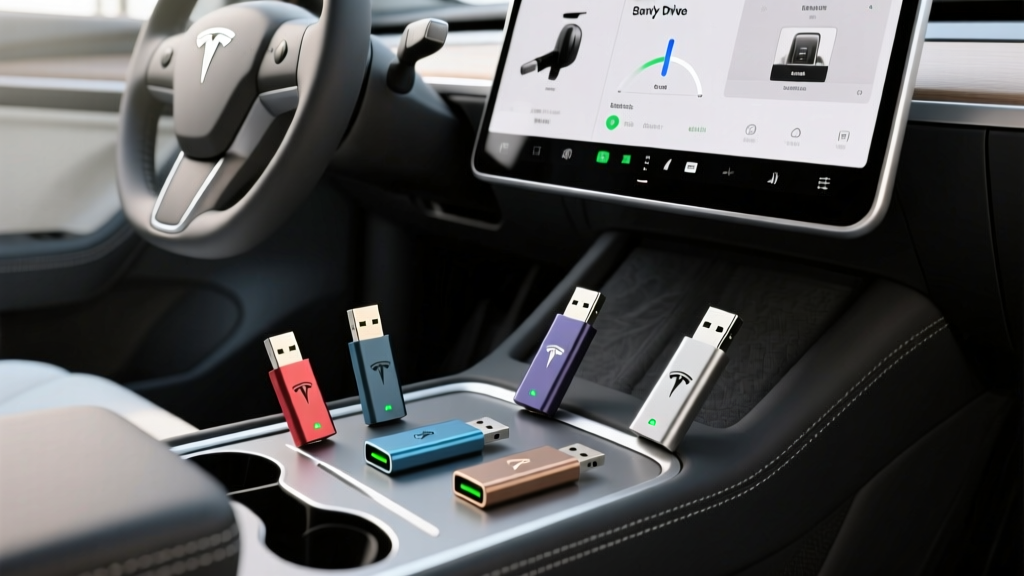
If you own a Tesla Model 3, Model Y, Model S, or Model X, you've likely encountered the prompt to insert a USB drive for Sentry Mode and dashcam functionality. Tesla's built-in camera system records continuously while driving (dashcam) and monitors your vehicle's surroundings while parked (Sentry Mode), but the automaker doesn't include a storage drive in most trims. That means sourcing a reliable USB drive for Tesla is one of the first accessory purchases most owners make.
Not just any thumb drive will do. Tesla's camera system writes data constantly — up to four camera feeds simultaneously — which generates significant heat and wears out consumer-grade flash memory quickly. In this guide, we break down exactly what to look for, which drives hold up best in real-world Tesla ownership, and how to format and install them properly.
What Tesla's USB Ports Actually Support
Before buying anything, it's critical to understand the hardware you're working with. Tesla vehicles from 2021 onward (including the refreshed Model 3 Highland and current Model Y) feature USB-C ports in the front center console and rear passenger area. Older models (pre-2021) use USB-A ports.
The glovebox USB port — typically USB-A across all model years — is the designated port for Sentry Mode and dashcam recording. Tesla's system expects a drive formatted to exFAT, FAT32, or ext4, with a folder named TeslaCam in the root directory. The infotainment system will create subfolders automatically once recording begins.
While Tesla's infotainment hardware (the AMD Ryzen-based MCU in current vehicles) can theoretically read drives well beyond 1 TB, most owners find that 128 GB to 512 GB hits the sweet spot. Larger drives take longer to scan on boot and offer diminishing returns since Tesla overwrites the oldest footage in a loop.
Top USB Drives for Tesla Sentry Mode and Dashcam (2026 Picks)
We evaluated drives on four criteria that matter specifically for Tesla use: sustained write endurance, thermal performance in a parked car, form factor (shorter drives are less likely to get knocked loose), and read speed for reviewing footage on a laptop. Here are the standout options.
Best Overall: Samsung BAR Plus 256 GB (USB-A)
The Samsung BAR Plus remains the gold standard for Tesla owners. Its metal unibody construction acts as a heatsink, dissipating thermal load far better than plastic-shelled drives. Rated for up to 400 MB/s read speed (USB 3.1), it handles Tesla's multi-camera write load without throttling. The 256 GB capacity stores roughly 3–4 days of mixed driving and Sentry Mode clips before overwriting. Samsung rates it for water, shock, magnet, and X-ray resistance — relevant since glovebox temperatures can exceed 140°F in summer sun.
Best for USB-C Teslas: Samsung FIT Plus 256 GB (USB-C)
For newer Teslas with USB-C glovebox ports (some 2025+ builds), the ultra-compact FIT Plus sits nearly flush, reducing the risk of accidental bumps. Its tiny form factor means slightly higher thermal density, but Samsung's NAND controller manages sustained writes well enough for Tesla's workload. Expect 400 MB/s reads and reliable loop recording.
Best High-Endurance Option: SanDisk High Endurance 256 GB
Designed for dashcams and security cameras, the SanDisk High Endurance line uses MLC or high-grade TLC NAND rated for tens of thousands of write hours. If you park in high-traffic areas where Sentry Mode triggers constantly, this drive's superior write endurance makes it worth the modest premium. Read speeds top out around 100 MB/s — plenty for Tesla's needs, though pulling footage to a laptop takes slightly longer.
Best SSD Option: Samsung T7 Shield 1 TB (USB-C)
For owners who want maximum storage and the fastest possible footage review, a portable SSD like the Samsung T7 Shield connects via USB-C and delivers up to 1,050 MB/s read/write speeds. The 1 TB capacity stores weeks of footage. The tradeoff is size — it's larger than a thumb drive and requires a short USB-C cable in some configurations. However, SSDs have no moving parts and far superior write endurance compared to any flash drive. This is the power-user choice, especially for those who travel frequently and want to archive Sentry Mode events.
| Drive | Capacity | Interface | Read Speed | Endurance Rating | Approx. Price |
|---|---|---|---|---|---|
| Samsung BAR Plus | 256 GB | USB-A 3.1 | 400 MB/s | Standard TLC | $28 |
| Samsung FIT Plus | 256 GB | USB-C 3.1 | 400 MB/s | Standard TLC | $30 |
| SanDisk High Endurance | 256 GB | USB-A 3.0 | 100 MB/s | High-endurance TLC/MLC | $35 |
| Samsung T7 Shield SSD | 1 TB | USB-C 3.2 | 1,050 MB/s | TLC SSD (600 TBW) | $95 |
How to Format and Set Up Your USB Drive for Tesla
Out of the box, most USB drives come formatted as exFAT or NTFS. Tesla's system works best with exFAT for drives over 32 GB. Here's the setup process:
- Format the drive to exFAT using your computer (Windows: right-click the drive in File Explorer → Format → exFAT; Mac: Disk Utility → Erase → exFAT).
- Create a folder named exactly
TeslaCamin the root directory of the drive. Capitalization matters — use a capital T and capital C. - Insert the drive into your Tesla's glovebox USB port (or front console USB-C port on newer models, depending on your vehicle's configuration).
- Confirm recognition by checking the dashcam icon on your Tesla's touchscreen. A red recording dot indicates active capture.
- Enable Sentry Mode via Controls → Safety → Sentry Mode, and configure exclusions (Home, Work, Favorites) if desired.
Tesla will automatically create subfolders: SentryClips, SavedClips, and RecentClips. Manual saves (triggered by tapping the dashcam icon or honking the horn, if configured) go to SavedClips and won't be overwritten automatically.
Real-World Tips From Tesla Owners
After years of community testing across Model 3, Model Y, Model S, and Model X forums, several patterns have emerged that every Tesla owner should know:
- Heat kills flash drives. In summer, glovebox temperatures can exceed 140°F (60°C). Metal-bodied drives like the Samsung BAR Plus dissipate heat far better than plastic alternatives. If you live in a hot climate, consider a small SSD mounted in the center console where airflow is better.
- Sentry Mode is write-intensive. When active, Sentry Mode records from multiple cameras and saves 10-minute clips whenever motion is detected. In a busy parking lot, this can mean dozens of writes per day. High-endurance drives or SSDs handle this workload significantly better than budget flash drives.
- Review footage regularly. Tesla's loop recording will eventually overwrite everything. If you want to preserve an incident, save the clip immediately (tap the dashcam icon) or pull the drive and copy files to your computer.
- Format periodically. Every few months, reformat the drive on your computer to clear fragmented files and maintain write performance. Tesla's filesystem can accumulate orphaned data over time.
- Avoid USB hubs for recording. Tesla's system expects a direct connection. Powered hubs can work for music, but Sentry Mode recording through a hub is unreliable.
Do You Need a USB Drive for Tesla Music and Media?
Separately from Sentry Mode, many Tesla owners use a USB drive to store local music files. Tesla's media player supports MP3, FLAC, WAV, and AAC formats, and a well-organized folder structure displays album art and metadata on the touchscreen. For music alone, even a modest 64 GB drive holds thousands of high-quality FLAC files. You can use the same drive for both music and dashcam (Tesla reads the TeslaCam folder separately), but a dedicated drive for recording avoids any risk of file conflicts.
Tesla's Built-In Storage: What About the 128 GB Option?
Starting with the Model 3 Highland refresh and current Model Y Juniper, Tesla offers built-in SSD storage (typically 128 GB) for dashcam and Sentry Mode clips, eliminating the need for a USB drive entirely. If your Tesla includes this feature (check Settings → Safety → Dashcam to see if internal storage is active), you can skip the USB purchase. However, built-in storage has limitations: you can't easily pull clips to a computer without using the Tesla app or screen-based export, and the capacity is fixed. Many owners with built-in storage still run a USB drive as a backup or for easier file transfer.
Frequently Asked Questions
What size USB drive do I need for Tesla Sentry Mode?
128 GB is the practical minimum for Sentry Mode, providing roughly 1–2 days of mixed recording before overwriting. 256 GB is the sweet spot for most owners, offering 3–4 days of buffer. Drives larger than 512 GB work but provide diminishing returns given Tesla's loop-recording behavior and longer scan times on vehicle wake.
Can I use a microSD card with an adapter for my Tesla?
Yes, a microSD card in a USB adapter works, but it's not ideal. MicroSD cards are designed for sequential writes (like video cameras) rather than the random write patterns Tesla's system generates. They also tend to run hotter in adapters. A native USB flash drive or portable SSD is more reliable for long-term Tesla use.
Why does my Tesla say the USB drive is too slow?
This error typically appears when the drive can't sustain the write speed required for multi-camera recording. Budget USB 2.0 drives and worn-out flash drives are common culprits. Switch to a USB 3.0+ drive from a reputable brand (Samsung, SanDisk) with sustained write speeds above 50 MB/s. If the error persists on a new drive, reformat to exFAT and ensure the TeslaCam folder is correctly named.
How long do USB drives last in a Tesla?
A standard consumer flash drive subjected to daily Sentry Mode use may fail within 12–18 months due to write exhaustion. High-endurance drives rated for dashcam use typically last 3–5 years. Portable SSDs like the Samsung T7 Shield, rated for 600 TBW (terabytes written), can theoretically outlast the vehicle. Heat exposure accelerates failure — parking in shade or using a sunshade extends drive life.
Does Sentry Mode drain the Tesla battery significantly?
Sentry Mode consumes roughly 1–2 miles of range per hour of activation, or about 24–48 miles over a full day. In cold weather, this draw increases slightly due to battery thermal management. Tesla automatically disables Sentry Mode when the battery drops below 20%. If you park for extended periods without charging, consider disabling Sentry Mode or setting location-based exclusions.
Can I view Sentry Mode clips on my phone?
Yes. Tesla's app (version 4.30+) supports remote viewing of Sentry Mode clips if your vehicle has the necessary hardware and connectivity. You can also pull the USB drive and view clips on any computer — Tesla saves them as standard MP4 files. For built-in storage vehicles, clips can be exported via the touchscreen to a USB drive or viewed through the app.
Choosing the right USB drive for Tesla comes down to endurance, thermal management, and capacity. For most owners, the Samsung BAR Plus 256 GB offers the best balance of price, performance, and durability. Hot-climate owners and heavy Sentry Mode users should invest in a high-endurance drive or portable SSD. Whichever you choose, proper formatting and periodic maintenance will keep your Tesla's camera system recording reliably for years.