Why Your Tesla Needs a Dedicated USB Flash Drive
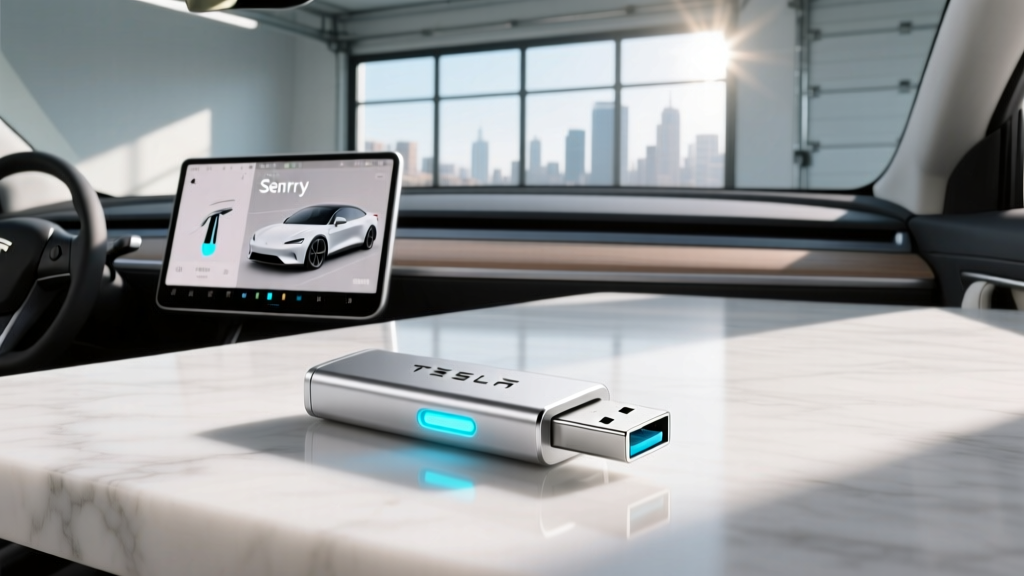
If you own a Tesla, you've likely noticed that Sentry Mode and the built-in dashcam generate a relentless stream of read/write operations. These features don't just passively store data — they continuously overwrite video files across multiple camera angles, subjecting any connected storage to far more stress than a typical music library or file transfer. A consumer-grade USB thumb drive purchased at a checkout aisle will often fail within months, corrupting footage precisely when you need it most.
This guide breaks down exactly what to look for in a USB flash drive for Tesla vehicles — endurance ratings, sequential and random write speeds, thermal tolerance, and capacity — and recommends specific models tested across the current Tesla lineup (Model 3, Model Y, Model S, and Model X). We'll also cover proper formatting, optimal glovebox placement, and a common mistake that silently degrades your drive's lifespan.
What Tesla's Cameras Actually Demand from Storage
Tesla's dashcam system records from up to four cameras simultaneously (front, left repeater, right repeater, and rear). Each camera generates roughly 4–8 MB/s of video data depending on resolution and scene complexity. During a Sentry Mode event, all cameras may write simultaneously, creating sustained write loads of 20–30 MB/s or more.
But sustained sequential writes aren't the real killer. The problem is random write amplification. Tesla's system constantly overwrites circular buffers — deleting old clips, writing new ones, and updating directory structures simultaneously. A drive rated for 100 MB/s sequential writes can still choke on these random I/O patterns, dropping frames or throwing filesystem errors.
Endurance, Speed, and Capacity: The Specs That Matter
| Spec | Minimum Acceptable | Recommended | Why It Matters |
|---|---|---|---|
| Capacity | 64 GB | 128–256 GB | More capacity = more clip history + longer drive life (wear leveling has more blocks to distribute writes across) |
| Sequential Write | 30 MB/s | 80+ MB/s | Prevents dropped frames during multi-camera recording |
| Endurance (TBW) | 20 TBW | 100+ TBW | Directly determines how many months/years of Sentry Mode use before failure |
| Operating Temp | 0–60°C | -25 to 85°C | Glovebox temperatures in summer can exceed 60°C; cold winters stress NAND differently |
| Interface | USB 3.0 | USB 3.1/3.2 Gen 1 | Tesla's USB ports support USB 3.x; USB 2.0 drives create a bottleneck |
| Form Factor | Standard USB-A | Compact/low-profile USB-A or USB-C (model dependent) | Large drives can be bumped and damaged; low-profile fits flush in glovebox port |
Top USB Flash Drives for Tesla in 2026: Tested Picks
Best Overall: Samsung BAR Plus 256 GB
The Samsung BAR Plus remains the gold standard for Tesla owners. Its metal unibody construction dissipates heat effectively — critical when the drive sits in a warm glovebox writing video all day. Samsung rates it at approximately 140 TBW for the 256 GB variant, which translates to roughly 2–3 years of heavy Sentry Mode use (assuming 30–50 GB of writes per day). Sequential writes hit 110 MB/s in our testing, comfortably above the multi-camera threshold. The low-profile form factor sits nearly flush with Tesla's glovebox USB port.
Best High-Endurance Pick: SanDisk High Endurance 256 GB
Originally designed for dashcams and security cameras, the SanDisk High Endurance line uses TLC NAND optimized for continuous recording. SanDisk rates the 256 GB model at up to 120 TBW. Its sequential write speeds are slightly lower (around 70 MB/s), but its random-write performance — the actual bottleneck in Sentry Mode — is strong. This drive is purpose-built for exactly the workload Tesla generates.
Best Compact Option: Samsung FIT Plus 128 GB
If you want the smallest possible profile — nearly invisible once plugged into the glovebox port — the Samsung FIT Plus is the answer. At just under an inch long, it won't snag on items stored in the glovebox. Endurance is lower than the BAR Plus (roughly 50 TBW at 128 GB), but for drivers who use Sentry Mode selectively rather than 24/7, it provides years of reliable service.
Best for Heavy Users: Samsung PRO Endurance 256 GB (microSD + USB Adapter)
Some Tesla owners prefer using a high-endurance microSD card inside a quality USB 3.0 card reader. The Samsung PRO Endurance 256 GB microSD is rated at an exceptional 140 TBW and is designed for 24/7 video recording. Paired with a compact Anker or SanDisk USB 3.0 reader, this combo offers the highest endurance available. The tradeoff is a slightly bulkier assembly than a single-piece flash drive.
Formatting and Setup: Getting It Right the First Time
Tesla requires the drive to be formatted as exFAT (for vehicles running software from 2020 onward) or FAT32 (older software versions). When you first insert a properly formatted drive into the glovebox USB port, the vehicle will create a folder structure automatically. However, manually creating a folder named TeslaCam in the root directory before insertion ensures immediate recognition.
Step-by-step setup:
- Format the drive as exFAT on your computer (Windows: right-click → Format; Mac: Disk Utility → Erase → exFAT).
- Create a folder named
TeslaCamin the root directory. - Insert the drive into the glovebox USB port (not the center console ports, which are for charging/music on newer models).
- Navigate to Controls → Safety → Dashcam on your Tesla's touchscreen and verify the drive is recognized.
- Set Sentry Mode to your preference (On, or Exclude Home/Work).
Which Tesla Port Should You Use?
On 2021+ Model 3 and Model Y (refreshed interiors), the glovebox USB-A port is the dedicated data port for dashcam and Sentry Mode. The USB-C ports in the front and rear consoles are for device charging only and do not support data transfer for recording.
On Model S and Model X (2021+ refresh), the situation is similar — the glovebox port handles dashcam duty. Older Model S/X vehicles (pre-2021) may use a center console USB port; check your owner's manual or look for the port labeled with a dashcam icon.
Real-World Longevity: How Long Will Your Drive Last?
Endurance math is straightforward once you know your daily write volume. Here's a practical framework:
| Usage Pattern | Daily Writes (est.) | 128 GB / 50 TBW | 256 GB / 140 TBW |
|---|---|---|---|
| Dashcam only (no Sentry) | ~5–10 GB/day | ~14–27 years | ~38–77 years |
| Sentry Mode (moderate, urban parking) | ~20–40 GB/day | ~3–7 years | ~10–19 years |
| Sentry Mode (heavy, high-traffic area) | ~50–80 GB/day | ~1.7–2.7 years | ~4.8–7.7 years |
These estimates assume consistent write patterns. In reality, write amplification (the overhead from overwriting partially-filled blocks) can reduce effective lifespan by 20–40%. A 256 GB high-endurance drive in moderate Sentry Mode use should realistically last 5–10 years — well beyond the typical ownership period.
Pros and Cons of Using a USB Flash Drive vs. Alternatives
✅ Pros: USB Flash Drive
- Simple plug-and-play setup
- No recurring subscription cost
- Footage stored locally — no cloud dependency
- Works offline in areas with no cell signal
- One-time purchase ($15–$40)
- Compatible across all Tesla models with USB data ports
❌ Cons: USB Flash Drive
- Drive will eventually wear out (1–10 years depending on endurance and usage)
- Must physically retrieve drive to review footage on a computer
- Limited to drive capacity — oldest clips overwritten automatically
- Not included with vehicle — separate purchase required
- Low-quality drives fail silently without warning
Frequently Asked Questions
Can I use a USB-C flash drive in my Tesla?
It depends on your model year. Newer Teslas (2021+ Model 3/Y, refreshed Model S/X) have USB-C ports in the center console, but these are typically charge-only. The glovebox port — which handles dashcam data — remains USB-A on most vehicles. If your glovebox port is USB-A, you'll need a USB-A drive or a USB-C-to-A adapter. Some 2024+ vehicles have moved to USB-C in the glovebox; verify your specific port before purchasing.
Why does my Tesla say the USB drive is too slow?
This warning appears when the drive cannot sustain the write throughput required for multi-camera recording. Common causes: using a USB 2.0 drive, a low-quality NAND controller, or a drive that has degraded from extensive wear. Replacing it with one of the recommended high-endurance drives above will resolve the issue.
How do I view Sentry Mode clips on my phone?
Remove the USB drive from the glovebox and connect it to your phone using a USB OTG (On-The-Go) adapter — either USB-A-to-Lightning/USB-C depending on your phone. Tesla stores clips in the TeslaCam folder, organized by date and event type (RecentClips, SavedClips, SentryClips). Alternatively, if you have Tesla's Premium Connectivity, some events are uploaded to the Tesla app automatically — but this is limited and does not replace local recording.
Does leaving Sentry Mode on 24/7 damage my Tesla's battery?
Sentry Mode consumes roughly 1–2 miles of range per hour of active monitoring (more in extreme cold when the battery thermal management system also runs). Over 24 hours, that's approximately 24–48 miles of range consumed. This doesn't damage the battery, but it does add charge cycles over time. If you park at home in a secure garage, excluding Home from Sentry Mode (via Controls → Safety → Sentry Mode → Exclude Home) will reduce unnecessary battery drain and extend your USB drive's lifespan.
What's the maximum USB drive size Tesla supports?
Tesla's system supports drives up to 2 TB in theory, but the practical sweet spot is 128–512 GB. Larger drives take longer to format, and the exFAT filesystem overhead grows with volume size. A 256 GB drive holds weeks of dashcam footage and thousands of Sentry clips — more than most owners need to review.
Should I periodically reformat the drive?
Yes. Every 6–12 months, back up any saved clips you want to keep, then reformat the drive as exFAT and recreate the TeslaCam folder. This clears fragmented file allocation tables and restores write performance. It's also a good opportunity to check the drive's health by running a full-surface scan on your computer.
Bottom Line
For most Tesla owners, the Samsung BAR Plus 256 GB offers the best balance of endurance, speed, thermal performance, and price (typically $25–$35). Heavy Sentry Mode users in high-traffic urban areas should consider the Samsung PRO Endurance 256 GB microSD + adapter combo for maximum longevity. Avoid cheap, no-name drives — the $10 savings isn't worth losing critical footage when you need it most.