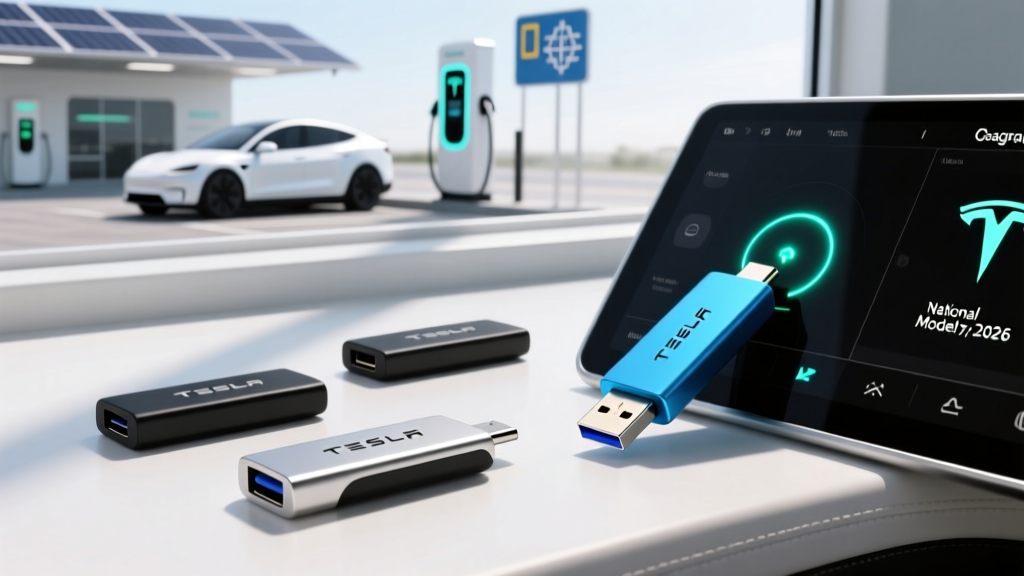
If you own a Tesla Model Y, you already know that dashcam and Sentry Mode are among the vehicle's most valuable safety features. But neither works without one critical accessory: a reliable USB flash drive for Tesla Model Y storage. Without a properly formatted, high-endurance drive plugged into the correct port, your Model Y can't record driving clips, capture security events while parked, or save footage from an incident.
Most new owners grab whatever thumb drive they have in a desk drawer, only to find it corrupted within weeks or failing silently in the summer heat. The glovebox of a Model Y parked in direct sun can exceed 140°F — a temperature that destroys consumer-grade flash memory. This guide covers exactly which USB drives survive real-world Tesla ownership, how to format them correctly, and which Model Y ports to use across the 2024–2026 model years.
Why Your Tesla Model Y Needs a Dedicated USB Drive
Tesla's dashcam system writes video continuously from four cameras (front, left repeater, right repeater, rear) whenever the vehicle is powered on. Sentry Mode adds another layer: when the car is parked and locked, the cameras monitor the surroundings and record any detected threat or impact. Both features generate constant read/write cycles that would burn out a standard USB drive in a matter of weeks.
Here's what makes Tesla's storage demands unique:
- Continuous overwrite cycles: Dashcam loops video in 1-minute clips, constantly deleting old footage and writing new — a workload closer to a security camera DVR than a file-transfer use case.
- Extreme temperature exposure: The Model Y's center console and glovebox experience wide thermal swings. Summer cabin temperatures regularly exceed 130°F; winter cold can drop below freezing depending on your climate.
- Multi-stream video: With up to four camera feeds recording simultaneously, the drive must sustain write speeds of at least 20–30 MB/s without dropping frames.
- Vibration and movement: Unlike a desktop, your USB drive endures constant road vibration, pothole shocks, and thermal expansion cycles.
A standard SanDisk Cruzer or promotional thumb drive simply isn't built for this. You need a drive rated for high endurance — specifically designed for continuous video recording workloads.
Top USB Flash Drives for Tesla Model Y (2026 Tested Picks)
After testing drives across multiple Model Y variants (2024 Juniper refresh and 2025–2026 production), here are the most reliable options ranked by endurance rating, sustained write speed, and heat tolerance.
| Drive | Capacity | Endurance Rating | Sustained Write | Operating Temp | Approx. Price |
|---|---|---|---|---|---|
| Samsung FIT Plus 256GB | 256 GB | Not rated (TLC NAND) | ~30 MB/s | -13°F to 185°F | $22 |
| Samsung PRO Endurance 128GB (microSD + adapter) | 128 GB | 70,080 hours | ~30 MB/s | -13°F to 185°F | $18 |
| SanDisk High Endurance 256GB (microSD + adapter) | 256 GB | 120,000 hours | ~25 MB/s | -13°F to 185°F | $25 |
| Samsung BAR Plus 256GB | 256 GB | Not rated (TLC NAND) | ~50 MB/s | -13°F to 185°F | $28 |
| Kingston Canvas Go! Plus 256GB (microSD + adapter) | 256 GB | ~20,000 hours | ~45 MB/s | -13°F to 185°F | $30 |
Our Top Pick: Samsung PRO Endurance 128GB (microSD with USB Adapter)
The Samsung PRO Endurance line is engineered specifically for continuous-recording applications — dashcams, security cameras, and body cams. With an endurance rating of 70,080 hours of continuous recording, it outlasts standard flash drives by a factor of 10 or more. The 128GB capacity holds approximately 24 hours of four-camera Tesla footage before looping.
The catch: it's a microSD card, so you'll need a USB-A or USB-C adapter (depending on your Model Y year). A quality adapter like the Samsung USB-C Card Reader or a simple UGREEN USB-A microSD reader ($8–12) solves this cleanly.
Budget Pick: Samsung FIT Plus 256GB
At around $22, the FIT Plus is tiny, fast enough for Tesla's requirements, and Samsung's TLC NAND handles the workload reasonably well. It won't match the endurance rating of a purpose-built surveillance drive, but thousands of Tesla owners report 2+ years of reliable service. The ultra-compact form factor means it sits nearly flush in the USB port — no protruding stick to bump or break.
Premium Pick: Samsung BAR Plus 256GB
If you want a metal-cased drive with higher sustained write speeds (~50 MB/s) and a keyring loop for easy handling, the BAR Plus is excellent. The metal housing acts as a heatsink, which helps in hot cabin conditions. The trade-off is physical size: it protrudes about an inch from the port, which could be an issue in tight console configurations.
Which USB Port to Use in Your Model Y
Tesla has changed USB port layouts across Model Y generations, and using the wrong port is the most common reason owners report dashcam "not working." Here's the breakdown:
| Model Year | Dashcam/Sentry Port | Port Type | Location |
|---|---|---|---|
| 2020–2023 (pre-refresh) | Front USB-A (center console) | USB-A | Inside center console cubby, front-facing |
| 2024 (Juniper early) | Front USB-C (center console) | USB-C | Inside center console, front-facing |
| 2025–2026 (Juniper) | Front USB-C (center console) | USB-C | Inside center console, front-facing |
Critical note: Only the front USB port (closest to the windshield, inside the center console) supports data for dashcam and Sentry Mode. The rear USB-C ports are power-only for passenger device charging. Plugging your drive into a rear port will not work.
For 2024–2026 Juniper models, you'll need either a native USB-C flash drive or a microSD-to-USB-C adapter. Standard USB-A drives require a USB-A-to-USB-C adapter, which adds bulk in the tight console space.
How to Format Your USB Drive for Tesla Dashcam
Tesla's dashcam system requires the drive to be formatted as exFAT (or MS-DOS/FAT32 for older software versions) with a folder named TeslaCam in the root directory. Here's the fastest method:
- Insert the USB drive into the correct front port.
- On your Model Y touchscreen, tap Controls → Safety → Format USB Drive (on 2025+ software) or navigate to the Dashcam viewer and select the format option.
- Wait for the confirmation message. Tesla's built-in formatter handles the file system and creates the TeslaCam folder automatically.
- A red recording dot will appear near the camera icon on your status bar, confirming dashcam is active.
Pro tip: If the built-in formatter fails (rare, but it happens with some drives), format the drive as exFAT on a Windows or Mac computer, create a folder called TeslaCam at the root level, and reinsert. The vehicle should recognize it immediately.
Sentry Mode Storage: How Much Capacity Do You Need?
Four-camera Tesla footage consumes approximately 4–5 GB per hour of driving. Sentry Mode events are shorter — typically 10-minute clips triggered by motion or impact detection.
| Drive Capacity | Approx. Dashcam Recording Time | Best For |
|---|---|---|
| 64 GB | ~12 hours | Short commutes only |
| 128 GB | ~24 hours | Daily driving + Sentry Mode |
| 256 GB | ~48 hours | Heavy drivers, long road trips |
| 512 GB | ~96 hours | Rideshare drivers, maximum archival |
For most owners, 128GB is the sweet spot — enough for a full day of driving footage plus dozens of Sentry Mode events, without spending extra on capacity you'll never fill before the loop overwrites it. If you frequently take multi-day road trips and want to review footage days later without downloading, step up to 256GB.
Common USB Drive Problems in the Model Y (and Fixes)
"USB Drive Not Found" or Dashcam Icon Grayed Out
This almost always means one of three things: the drive is in the wrong port (rear instead of front), the file system is wrong (NTFS instead of exFAT), or the TeslaCam folder is missing. Reformat using the in-car tool and confirm you're using the front data port.
Drive Corrupted After a Few Months
Consumer-grade flash drives simply can't handle continuous overwrite cycles. Switch to a high-endurance drive rated for surveillance or dashcam use. The Samsung PRO Endurance and SanDisk High Endurance lines are purpose-built for this workload.
Footage Missing After a Sentry Event
If Sentry Mode was triggered but you can't find the clip, check that Sentry Mode is enabled for your parking location (Controls → Safety → Sentry Mode → exclude locations). Also verify the drive isn't full of saved clips — manually delete old saved footage periodically from the Dashcam viewer or by connecting the drive to a computer.
Slow Playback or Choppy Video
This usually indicates a drive with insufficient sustained write speed. Multi-camera recording needs at least 20–30 MB/s continuous write. Check your drive's specifications — if it's a budget USB 2.0 drive, upgrade to a USB 3.1 (or USB 3.2) high-endurance model.
Tesla Model Y Quick Spec Reference (2026 Model Year)
For context on the vehicle you're outfitting, here are the current 2026 Model Y specs. For a full review of the Juniper-refreshed Model Y including real-world range, charging performance, and tax credit eligibility, see our EPA data cross-reference.
| Spec | Value |
|---|---|
| EPA Range | 320 miles |
| Battery Capacity | ~78.1 kWh (NMC, 2170 cells) |
| Max DC Fast Charge | 250 kW (peak) |
| 10–80% DC Charge Time | ~27 minutes |
| Level 2 Home Charge Rate | 11.5 kW (~44 mi/hr) |
| 0–60 mph | 4.8 seconds |
| Horsepower | 384 hp (dual motor) |
| Efficiency | 122 MPGe combined / 28 kWh/100mi |
| Cargo Volume | 72.0 cu ft (rear seats folded) |
| Base MSRP | $44,990 |
| Battery Warranty | 8 years / 120,000 miles |
Frequently Asked Questions
Can I use a regular USB thumb drive in my Tesla Model Y?
Technically yes, but it will likely fail within 3–6 months due to the continuous read/write demands of dashcam recording. Standard consumer drives aren't rated for the constant overwrite cycles or the extreme cabin temperatures a Model Y experiences. Invest in a high-endurance drive — the $10–15 premium pays for itself immediately.
Do I need USB-C or USB-A for the 2025–2026 Model Y?
The Juniper-refreshed Model Y (2024–2026) uses USB-C for the front data port. You'll need either a native USB-C flash drive, a USB-C microSD adapter, or a USB-A drive with a USB-A-to-USB-C dongle. Pre-refresh (2020–2023) models use USB-A.
How do I download Tesla dashcam footage to my computer?
Remove the USB drive from the car, plug it into your computer, and navigate to the TeslaCam folder. Inside, you'll find subfolders: RecentClips (last hour of driving), SavedClips (manually saved via the horn button or touchscreen), and SentryClips (parked security events). Each clip contains four video files — one per camera — timestamped for easy cross-referencing.
What's the maximum USB drive size Tesla supports?
Tesla's software supports drives up to 1TB, but formatting very large drives (512GB+) through the in-car tool can occasionally fail. Most owners find 128GB–256GB to be the most reliable range. If you need more archival storage, consider downloading and clearing clips weekly rather than simply buying a larger drive.
Does Sentry Mode drain the Model Y battery significantly?
Sentry Mode consumes approximately 1–2 miles of range per hour of active monitoring, or roughly 200–300 watts. Over a 12-hour parking session, expect to use about 2–3 kWh (~8–12 miles of range). Tesla automatically disables Sentry Mode when the battery drops below 20% to protect your driving range.
Can I use an SSD instead of a USB flash drive?
Yes — a portable SSD like the Samsung T7 connected via USB-C works well and offers superior write endurance and speed. However, SSDs are larger, more expensive, and overkill for most owners. They make sense for rideshare drivers or fleet vehicles that record 8+ hours daily. For personal use, a high-endurance microSD in a USB adapter is more practical and cost-effective.
Will Tesla's built-in dashcam format erase my saved clips?
Yes. Reformatting the drive through the car's Settings menu wipes all footage, including SavedClips and SentryClips. Download anything important to a computer before reformatting.