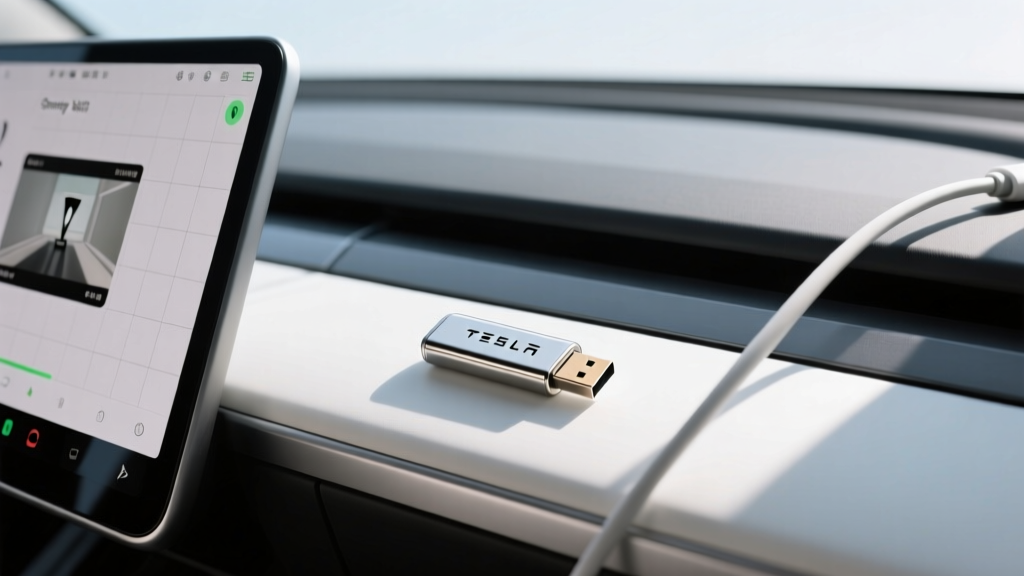
If you own a Tesla, the dashcam and Sentry Mode features are among the most valuable safety and security tools built into your vehicle. But both depend entirely on one small, often overlooked component: the USB storage drive you plug into the glovebox (or center console on older models). Pick the wrong drive and you'll face corrupted clips, failed recordings, or a drive that dies within months from constant rewrite cycles. Pick the right one and you'll have reliable, always-on video capture for years.
This guide breaks down exactly what makes a USB drive suitable for Tesla's dashcam system, which specific models we recommend in 2026, and how to set everything up correctly — whether you're driving a refreshed Model 3 Highland, a Model Y, or the latest Model S and X.
Why Tesla's Dashcam Demands a Specific Type of USB Drive
Tesla's dashcam and Sentry Mode aren't like a traditional dashcam that writes one long video file. The system continuously records from up to eight cameras simultaneously, writing multiple short clips in a rolling buffer. Sentry Mode goes further — it monitors the car's surroundings while parked and saves events when it detects threats, which can mean hundreds of write cycles per day in a busy parking lot.
This workload is brutal on standard USB flash drives. Consumer thumb drives are designed for occasional file transfers, not 24/7 continuous rewriting. The NAND flash cells in a typical bargain-bin drive will wear out in weeks or a few months under Tesla's write patterns. You need a drive built for high endurance — specifically rated for continuous video recording or surveillance workloads.
Here's what matters most:
- Endurance rating: Measured in terabytes written (TBW) or drive writes per day (DWPD). High-endurance drives use NAND designed for thousands of rewrite cycles.
- Sustained write speed: Tesla records multiple camera feeds simultaneously. You need consistent write throughput, not just a burst speed number on the box.
- Thermal tolerance: A glovebox in a Phoenix summer can exceed 140°F (60°C). The drive must operate reliably in extreme heat.
- Capacity: Larger drives spread wear across more NAND cells and store more footage before overwriting.
- Form factor and connector: Current Teslas (2021+) use USB-C in the glovebox for dashcam. Older models use USB-A in the center console.
Tesla Dashcam USB Drive Requirements: Speed, Endurance, and Format
Tesla's official guidance is simple: use a USB drive formatted as exFAT (or FAT32 for older firmware) with a folder named TeslaCam in the root directory. But the official specs don't detail the real-world performance floor you need to avoid dropped frames and recording errors.
Based on extensive owner testing and Tesla's multi-camera recording architecture, here are the practical minimums:
| Specification | Minimum Requirement | Recommended |
|---|---|---|
| Interface | USB 3.0 (5 Gbps) | USB 3.1/3.2 (10 Gbps) |
| Sustained Write Speed | 20 MB/s | 40+ MB/s |
| Endurance (TBW) | 50 TBW | 100+ TBW |
| Operating Temperature | 0°C to 60°C | -20°C to 85°C |
| Capacity | 64 GB | 256 GB–1 TB |
| File System | exFAT | exFAT |
A 256 GB high-endurance drive gives you roughly 24–48 hours of rolling dashcam footage across all cameras before the oldest clips are overwritten. Sentry Mode events are saved separately and won't be overwritten by the rolling buffer.
Top USB Drives for Tesla Dashcam in 2026
1. Samsung PRO Endurance 256 GB (microSD + USB-C Adapter)
The Samsung PRO Endurance line is purpose-built for surveillance and dashcam workloads. The 256 GB variant is rated for up to 140,000 hours of recording (at lower resolutions) and carries a 5-year warranty specifically covering continuous-recording use cases — something most manufacturers exclude. Paired with a quality USB-C card reader, this is our top pick for current Tesla models.
- Endurance: Rated for 70,080 hours at 4K / 140,160 hours at FHD
- Sequential Write: Up to 130 MB/s
- Operating Temp: -25°C to 85°C
- Warranty: 5 years (surveillance-rated)
- Approximate Price: $35–$45 (card) + $12–$18 (USB-C reader)
2. SanDisk High Endurance 256 GB (microSD + Adapter)
Western Digital's SanDisk High Endurance line is the other proven survivor in Tesla's write-heavy environment. The 256 GB model offers up to 120,000 hours of recording endurance and handles the thermal stress of a closed glovebox well. Slightly lower sequential write speeds than the Samsung, but more than adequate for Tesla's multi-camera recording bitrate.
- Endurance: Up to 120,000 hours (FHD)
- Sequential Write: Up to 100 MB/s
- Operating Temp: -20°C to 85°C
- Warranty: 3–5 years (varies by region)
- Approximate Price: $30–$40 (card) + $12–$18 (USB-C reader)
3. Samsung BAR Plus 256 GB (USB-A or USB-C Native)
If you prefer a self-contained USB stick rather than a microSD-in-adapter solution, the Samsung BAR Plus is one of the few consumer thumb drives with the build quality to survive Tesla duty. Its metal unibody construction dissipates heat better than plastic drives, and Samsung's NAND quality is well-established. However, it's not surveillance-rated — the endurance is lower than dedicated high-endurance cards, so expect a shorter lifespan under Sentry Mode's heavy write cycles.
- Sequential Write: Up to 110 MB/s (USB 3.1)
- Build: Metal unibody, water/shock/magnet/temperature-proof
- Operating Temp: 0°C to 60°C
- Warranty: 5 years
- Approximate Price: $28–$38
4. Transcend High Endurance 256 GB (microSD + Adapter)
Transcend's High Endurance line is less mainstream but well-regarded in the Tesla community. It uses 3D NAND optimized for write-intensive applications and includes a solid USB adapter bundle. A strong value option if you want 256 GB without paying Samsung's premium.
- Endurance: Rated for 140,000+ hours (FHD)
- Sequential Write: Up to 90 MB/s
- Warranty: 2–3 years
- Approximate Price: $25–$35 (card) + adapter included
Why High-Endurance microSD + Adapter Wins
- Surveillance-rated NAND designed for 24/7 rewriting
- Far higher TBW than any consumer USB stick
- Easily replaceable — swap the card, keep the reader
- Better thermal performance (smaller thermal mass)
- 5-year warranties that actually cover dashcam use
Trade-Offs of the Adapter Approach
- Two-piece setup (card + reader) can come loose
- Adapter quality varies — a bad reader bottlenecks the card
- Slightly more setup than plugging in a single USB stick
- Need to verify USB-C vs USB-A for your Tesla model year
How to Set Up Your USB Drive for Tesla Dashcam and Sentry Mode
Getting the drive ready takes about five minutes:
- Format the drive on a computer as exFAT. (On Windows: right-click the drive → Format → exFAT. On Mac: Disk Utility → Erase → exFAT.)
- Create a folder named exactly
TeslaCamin the root directory of the drive. Capitalization matters. - Insert the drive into the USB-C port in your glovebox (2021+ Model 3/Y, refreshed Model S/X) or the front USB-A port in the center console (pre-2021 models).
- Enable Dashcam on your Tesla's touchscreen: Controls → Safety → Dashcam → set to Automatic or On.
- Enable Sentry Mode if desired: Controls → Safety → Sentry Mode → On. Note that Sentry Mode draws approximately 200–300 watts while active, which translates to roughly 1 mile of range lost per hour of Sentry use.
Once configured, a red recording dot appears on the touchscreen when dashcam is active. You can review clips directly on the car's screen via the Dashcam Viewer app, or remove the drive and browse files on a computer — clips are organized by date in subfolders.
How Tesla Dashcam Storage Works: File Structure and Retention
Understanding how Tesla manages video files helps you choose the right capacity:
- Recent Clips (rolling buffer): The last 10 minutes of driving, continuously overwritten. Saved in 1-minute segments from front, rear, left-repeater, and right-repeater cameras (and cabin camera if equipped). When you tap the dashcam icon or honk the horn (if configured), the last 10 minutes are saved permanently.
- Saved Clips: Manually saved events. These persist until you delete them or the drive fills up.
- Sentry Clips: Triggered by Sentry Mode events. Saved with a timestamp and which camera detected motion.
At typical Tesla recording bitrates (~4–6 Mbps per camera), four cameras generate roughly 1.5–2 GB per hour of driving. A 256 GB drive holds approximately 100–130 hours of rolling footage. A 512 GB drive doubles that to 200–260 hours — useful if you drive frequently and want to review older trips without immediately pulling footage.
Common USB Drive Mistakes Tesla Owners Make
Based on years of community troubleshooting, here are the most frequent errors:
- Using a cheap, no-name USB stick: These fail within weeks under Sentry Mode's write load. The drive appears to work initially, then corrupts or stops recording silently.
- Skipping the TeslaCam folder: Without the exact folder name in the root directory, the car won't recognize the drive for recording.
- Formatting as NTFS or APFS: Tesla requires exFAT (or FAT32 on older firmware). NTFS will not work.
- Using a USB hub: Tesla's system expects a single, directly connected storage device. Hubs can cause recognition failures.
- Ignoring heat: If you live in a hot climate, avoid drives rated only to 60°C. Metal-body drives or microSD cards (which have lower thermal mass) handle glovebox heat better.
- Not checking Sentry Mode power drain: Leaving Sentry active 24/7 in a busy urban area can consume 5–7 kWh per day (~15–20 miles of range). Use the "Exclude Home" and "Exclude Work" settings if your parked location is safe.
Does Your Tesla's Built-In Storage Replace a USB Drive?
Starting with certain 2023+ builds, Tesla began offering the option to use the car's built-in SSD for dashcam storage, eliminating the need for an external USB drive entirely. If your vehicle supports this (check Controls → Safety → Dashcam to see if a "Glovebox USB" or "Internal Storage" option appears), the internal drive is faster and more reliable than any external USB stick.
However, not all Teslas received this feature, and it's not always retroactively available on older hardware. For most 2020–2025 Model 3 and Model Y vehicles, an external USB drive remains necessary. The refreshed Model 3 Highland (2024+) and newer Model Y Juniper (2025+) are more likely to include internal dashcam storage support, but verify in your specific vehicle's settings.
Frequently Asked Questions
Can I use a regular USB flash drive for Tesla dashcam?
Technically yes, but it will likely fail within a few months. Standard consumer USB drives aren't designed for the continuous rewrite cycles that Tesla's dashcam and Sentry Mode demand. High-endurance microSD cards with surveillance-rated NAND are far more reliable and cost about the same.
What's the best USB drive capacity for Tesla Sentry Mode?
256 GB is the sweet spot for most owners. It stores roughly 100+ hours of four-camera rolling footage and hundreds of Sentry events. If you park in high-traffic areas where Sentry triggers frequently, 512 GB gives you more headroom and extends the drive's lifespan by spreading writes across more NAND cells.
Does the USB drive need to be USB-C for my Tesla?
It depends on your model year. Tesla vehicles built from mid-2021 onward (including the Model 3 Highland and Model Y Juniper) have a USB-C port in the glovebox specifically for dashcam. Pre-2021 vehicles use USB-A ports in the center console. Check your car's port before purchasing a drive or adapter.
How long will a high-endurance microSD last in a Tesla?
A quality high-endurance 256 GB card (Samsung PRO Endurance, SanDisk High Endurance) should last 3–5 years under normal Tesla dashcam and Sentry Mode usage. The Samsung PRO Endurance is rated for 70,080 hours of continuous 4K recording — that's 8 years of 24/7 writing. Real-world Tesla usage is less intensive than 4K surveillance, so the card's actual lifespan often exceeds the car's ownership period.
Why does my Tesla say the USB drive is too slow?
This error usually means the drive can't sustain the write speed needed for multi-camera recording. USB 2.0 drives, aging flash drives with worn NAND, or cheap adapters that bottleneck throughput can trigger this message. Switch to a USB 3.0+ high-endurance drive and ensure your card reader supports UHS-I or UHS-II transfer speeds.
Can I view Tesla dashcam footage on my phone?
Not directly over the air — Tesla doesn't currently stream dashcam clips to the mobile app. You can review clips on the car's touchscreen via the Dashcam Viewer, or physically remove the USB drive and plug it into a computer or phone (with a card reader adapter) to browse the MP4 files.