Why Your Tesla Needs a Proper USB Drive in 2026
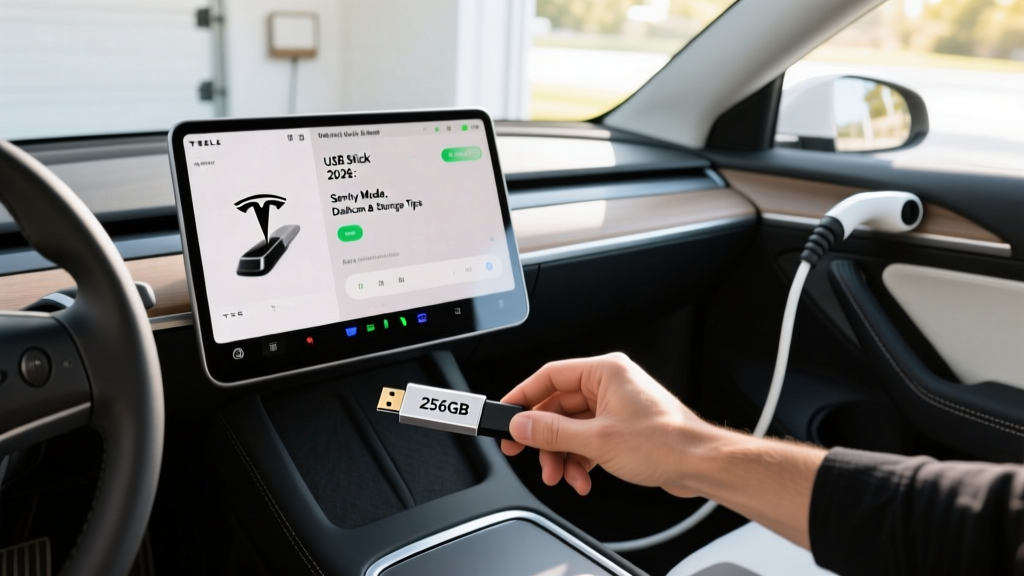
If you own a Tesla Model 3, Model Y, Model S, or Model X, a high-endurance USB flash drive is one of the most important accessories you can buy. Tesla's Sentry Mode and built-in dashcam continuously write video data to external storage, and not all USB sticks are built to survive that workload. Choose the wrong drive, and you'll face corrupted footage, failed Sentry Mode recordings, or a drive that dies within months.
This guide covers exactly which USB drives work best with Tesla's 2025–2026 vehicles, how to format them correctly, what storage capacity you actually need, and how Tesla's camera system interacts with your car's battery and storage hardware. We'll also touch on how Tesla's 2026 infotainment hardware (HW4/AI5) has changed the storage requirements compared to earlier models.
How Tesla's Dashcam and Sentry Mode Use USB Storage
Tesla vehicles are equipped with multiple external cameras (up to eight on current-production models). These cameras serve two primary recording functions:
- Dashcam: Records the last 10 minutes of driving footage across front, rear, and side cameras when triggered manually or by an event (hard braking, collision). Footage is saved to a
TeslaCamfolder on your USB drive. - Sentry Mode: When the vehicle is parked and locked, the cameras monitor the surroundings. Motion or threats trigger recording, saving clips to the
TeslaCam/SentryClipsdirectory. Sentry Mode can easily generate 50–200+ clips per day in busy urban environments.
Both features write video data continuously in a loop, which means your USB drive experiences relentless read/write cycles. Standard consumer USB sticks — the kind you buy for document storage — are not designed for this. They use low-grade NAND flash that degrades rapidly under constant rewriting.
Best USB Drives for Tesla in 2026: What to Buy
Based on real-world ownership reports, endurance ratings, and compatibility with Tesla's current USB-C ports (standard on all 2023+ Model 3/Y and 2021+ Model S/X), here are the top-performing drives:
| Drive | Capacity | Interface | Endurance Rating | Est. Price (2026) |
|---|---|---|---|---|
| Samsung PRO Endurance | 128 GB / 256 GB | USB-A (adapter needed) or microSD + USB-C reader | Up to 140,000 hrs (256 GB) | $22–$40 |
| SanDisk High Endurance | 128 GB / 256 GB | microSD + USB-C adapter | Up to 120,000 hrs (256 GB) | $18–$35 |
| Samsung FIT Plus (USB-C) | 128 GB / 256 GB | Native USB-C | Moderate (consumer-grade) | $18–$30 |
| Kingston Canvas Go! Plus + Reader | 128 GB / 256 GB | microSD + USB-C adapter | High (A2/V30 rated) | $20–$38 |
Our top recommendation: A high-endurance microSD card (Samsung PRO Endurance or SanDisk High Endurance) paired with a quality USB-C card reader. This combination provides the best endurance-to-price ratio and fits cleanly in the center console or glovebox port. The microSD form factor also lets you swap cards easily for footage review on a laptop.
Why Endurance Matters More Than Speed
Tesla's dashcam records at roughly 720p–1080p per camera at about 30 fps. The combined data rate across all cameras is approximately 2–4 MB/s. Even a USB 2.0 drive can sustain that throughput. What kills drives is not speed — it's the total number of write cycles. High-endurance cards use MLC or high-grade TLC NAND designed for surveillance and dashcam workloads, rated for tens of thousands of hours of continuous recording.
How to Format Your Tesla USB Drive Correctly
Tesla's infotainment system requires a specific folder structure and file system. Here's the process:
- Format the drive as exFAT (FAT32 works but has a 4 GB file-size limit; exFAT is preferred for 2025–2026 Teslas). You can do this on Windows (right-click → Format), macOS (Disk Utility), or directly in the car via Controls → Safety → Format USB Drive (available on software v12+).
- Create a folder named
TeslaCamin the root directory of the drive. This is case-sensitive. - Insert the drive into the USB-C port in the glovebox (preferred for security) or center console. The car will recognize it within seconds and display a dashcam icon on the touchscreen.
In-Car Formatting (Software v12+)
Starting with Tesla software version 2024.38 and carried into 2025–2026 releases, Tesla added an in-car format option. Navigate to Controls → Safety → Format USB Drive. This automatically formats to exFAT and creates the TeslaCam folder. It's the easiest method and eliminates user error with folder naming.
USB Storage Capacity: How Much Do You Actually Need?
The right capacity depends on your Sentry Mode usage pattern:
| Use Case | Daily Sentry Data | Recommended Capacity | Days Before Overwrite |
|---|---|---|---|
| Suburban home garage (low activity) | 0.5–2 GB | 64 GB | 30+ days |
| Office parking lot (moderate) | 5–15 GB | 128 GB | 8–25 days |
| Urban street parking (high activity) | 15–40 GB | 256 GB | 6–17 days |
| Heavy urban + frequent events | 30–60 GB | 512 GB | 8–17 days |
For most owners, 128 GB is the sweet spot — enough for 1–3 weeks of typical Sentry Mode clips before the oldest footage is overwritten. If you park in a high-traffic area or travel frequently, 256 GB provides a comfortable buffer. Going beyond 256 GB is rarely necessary unless you want to archive weeks of footage without offloading.
Reviewing and Managing TeslaCam Footage
There are three ways to review your dashcam and Sentry Mode clips:
- In-car viewer: Tap the dashcam icon on the touchscreen to browse Recent, Saved, and Sentry clips. The in-car viewer supports scrubbing and camera-angle switching but is slow for reviewing large numbers of clips.
- Computer: Remove the USB drive, plug it into a PC or Mac, and browse the
TeslaCamfolder structure. Clips are organized by date and camera angle (front, left-repeater, right-repeater, back). Each event has a thumbnail and a JSON metadata file. - Third-party apps: Tools like TeslaCam Viewer (Windows/Mac) and SentryView stitch multi-camera angles into a synchronized grid, making it far easier to review incidents than the native in-car viewer.
Sentry Mode Battery Impact
Sentry Mode draws approximately 200–300 watts while active, which translates to roughly 1–2 miles of range per hour of standby. Over a 24-hour period, expect to lose 25–40 miles of range equivalent. Tesla automatically disables Sentry Mode when the battery drops below 20% to preserve driving range. If you park for extended periods without charging, consider disabling Sentry Mode manually via the Tesla app.
Tesla's Built-in Dashcam vs. Aftermarket Solutions
Tesla's native camera system is convenient, but it has limitations compared to dedicated aftermarket dashcams:
| Feature | Tesla Built-In | Aftermarket (e.g., BlackVue, Vantrue) |
|---|---|---|
| Camera resolution | ~1080p effective (cropped from higher-res sensors) | 4K front / 1080p rear common |
| Night performance | Adequate, but not optimized for dashcam use | Superior with dedicated sensors (Sony STARVIS) |
| Parking mode | Sentry Mode (uses car battery, ~200–300W) | Low-power parking mode (1–5W, hardwired) |
| GPS logging | Yes (embedded in metadata) | Yes (built-in on most premium units) |
| Cloud backup | No native cloud upload | Wi-Fi/LTE cloud upload available |
| Installation | None (built-in) | Requires wiring or OBD-II power |
For most Tesla owners, the built-in system is sufficient — it's free, integrated, and requires zero installation. But if you need 4K resolution, superior night footage, or cloud backup for insurance claims, an aftermarket dashcam is worth considering as a supplement.
Troubleshooting Common Tesla USB Issues
Here are the most frequent USB-related problems Tesla owners encounter and how to fix them:
- "USB drive not recognized": Reformat as exFAT and ensure the
TeslaCamfolder exists. Try a different USB-C port. If using an adapter, test with a different adapter — cheap adapters cause connection failures. - Corrupted or missing clips: This usually indicates the drive is failing from write-cycle exhaustion. Check the drive's health using a utility like H2testw (Windows) or F3 (Mac/Linux). Replace with a high-endurance drive.
- Sentry Mode not saving clips: Verify the drive has free space, is properly formatted, and is inserted into the glovebox port. Also confirm Sentry Mode is enabled in Controls → Safety → Sentry Mode.
- Slow in-car playback: Large numbers of clips (500+) can slow the in-car viewer. Periodically offload and delete old clips from the drive.
Frequently Asked Questions
Can I use a regular USB thumb drive for Tesla Sentry Mode?
You can, but it's not recommended. Standard consumer USB drives use low-endurance NAND that degrades quickly under Sentry Mode's constant write cycles. Expect a regular thumb drive to fail within 3–6 months of daily Sentry Mode use. High-endurance microSD cards are far more reliable and cost only slightly more.
Does Tesla still support USB-A drives?
All 2023+ Model 3 and Model Y vehicles (including the 2025–2026 "Highland" and "Juniper" refreshes) ship with USB-C ports only. The 2021+ Model S and Model X also use USB-C. If you have an older USB-A drive, you'll need a USB-A to USB-C adapter. However, native USB-C drives or microSD card readers are more reliable and avoid adapter-related connection issues.
What's the maximum USB drive size Tesla supports?
Tesla's infotainment system supports drives up to at least 1 TB formatted as exFAT. However, there's little practical benefit to going above 256–512 GB for dashcam/Sentry use, since the car overwrites the oldest clips in a loop. Larger drives simply take longer to scan and index.
Can I use the same USB drive for music and dashcam?
Yes. Tesla supports a single USB drive with both a TeslaCam folder and music files. Place your music in a separate folder (any name works) and the car's media player will index it alongside the dashcam recordings. However, for optimal performance, many owners prefer dedicating one drive to TeslaCam (glovebox) and using a separate drive or Bluetooth/Spotify for music.
How do I export TeslaCam footage for an insurance claim?
Remove the USB drive from the glovebox, insert it into a computer, and navigate to TeslaCam/SavedClips or TeslaCam/SentryClips. Each clip is an MP4 file organized by date and timestamp. Copy the relevant files to your computer and submit them with your claim. If you need multi-angle synchronization, use a tool like TeslaCam Viewer to combine the camera feeds into a single video.
Does formatting the USB drive in the car erase everything?
Yes. The in-car format option (Controls → Safety → Format USB Drive) performs a full format and erases all existing clips and files. Offload any important footage to a computer before formatting.
Will Sentry Mode drain my Tesla's battery if I'm away for a week?
Sentry Mode consumes roughly 200–300 watts continuously, which equates to about 1–2 miles of range per hour. Over 7 days, that's approximately 170–330 miles of range lost. If your Tesla has 300+ miles of range and you start at 80–100% charge, you'll likely return to a usable battery level. However, Tesla disables Sentry Mode automatically below 20% SoC. For week-long parking without charging access, consider disabling Sentry Mode or using a third-party dashcam with low-power parking mode.