Why Your Tesla USB Drive Matters More Than You Think
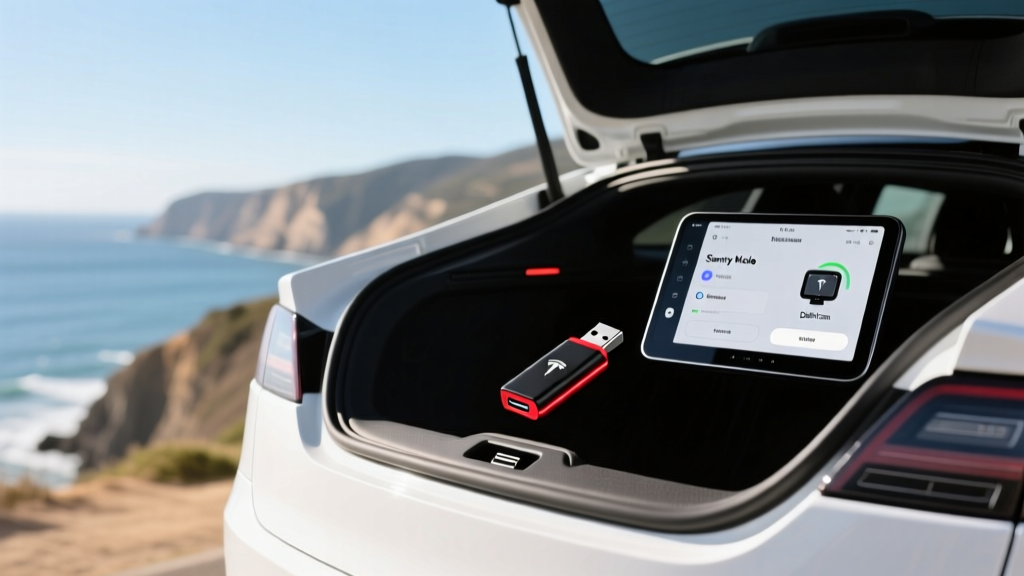
Every Tesla sold today — from the refreshed Model 3 Highland to the Model Y Juniper, Cybertruck, and new-generation Model S and X — relies on a USB drive for two critical safety features: dashcam recording and Sentry Mode surveillance. Unlike legacy automakers that bundle these features into subscription telematics packages, Tesla stores all footage locally on a user-supplied USB drive. Pick the wrong drive, and you'll suffer corrupted clips, missed incidents, and frustrating "USB drive not found" warnings on your touchscreen.
This guide covers exactly which USB drives work best in 2026 Tesla vehicles, how to format and configure them, how much storage you actually need, and the real-world gotchas that owners encounter after their first month of use. Whether you're taking delivery of a new Model Y or troubleshooting a Sentry Mode failure on your Model 3, this is the definitive reference.
Which USB Drives Work in a Tesla (2026 Compatibility)
Tesla's infotainment system reads USB storage through the center console ports (and in some models, the glovebox port). The system supports standard USB-A and USB-C flash drives formatted to exFAT, FAT32, or MS-DOS (FAT). Here's what matters most when selecting a drive:
- Interface: USB 3.0 or USB 3.1 recommended. USB 2.0 drives work but are painfully slow when reviewing footage on the car's screen or exporting clips.
- Capacity: 64 GB minimum for basic dashcam use; 128 GB–256 GB ideal if you use Sentry Mode regularly.
- Endurance: Sentry Mode writes and rewrites data continuously. Standard consumer thumb drives burn out within months under this workload. You need a drive rated for high write endurance.
- Form factor: Low-profile drives sit flush in the console and resist accidental bumps. Full-size drives with lanyard loops can snag on items stored nearby.
Top Tesla USB Drive Picks for 2026
| Drive | Capacity | Interface | Endurance Rating | Est. Price | Best For |
|---|---|---|---|---|---|
| Samsung BAR Plus (USB-A) | 128 GB / 256 GB | USB 3.1 | High (metal casing, heat-resistant) | $18–$30 | Overall best value |
| Samsung PRO Endurance (microSD + adapter) | 128 GB / 256 GB | USB 3.1 via adapter | Very high (up to 140,000 hrs recording rated) | $22–$40 | Heavy Sentry Mode users |
| SanDisk High Endurance (microSD + adapter) | 128 GB / 256 GB | USB 3.0 via adapter | High (designed for dashcams/security cams) | $18–$35 | Budget endurance option |
| Kingston Canvas Go! Plus (microSD + adapter) | 128 GB / 256 GB | USB 3.2 via adapter | High | $20–$32 | Fast export speeds |
| Tesla Official USB Drive | 128 GB | USB-C (glovebox) | Moderate | $35 | Plug-and-play (pre-formatted) |
Editor's pick: The Samsung PRO Endurance microSD card in a quality USB-A or USB-C card reader delivers the best combination of write endurance and cost. Sentry Mode is essentially a 24/7 surveillance recorder — endurance-rated media handles this workload far better than a standard flash drive.
How to Format a USB Drive for Tesla Dashcam & Sentry Mode
Tesla requires a specific folder structure to recognize your drive for recording. You can either format the drive directly in the car or set it up on a computer.
Method 1: Format in the Car (Easiest)
- Insert the USB drive into the front USB port (center console or glovebox, depending on your model year).
- On the touchscreen, go to Controls > Safety > Dashcam.
- Tap Format USB Drive. The car will erase the drive and create the required
TeslaCamfolder automatically. - Ensure Dashcam is set to Auto or On, and Sentry Mode is enabled under Controls > Safety > Sentry Mode.
Method 2: Format on a Computer
- Insert the drive into your computer.
- Format the drive to exFAT (Mac: Disk Utility; Windows: right-click drive > Format).
- Create a folder named
TeslaCamin the root directory (exact spelling, case-sensitive). - Eject safely and insert into your Tesla.
Note for 2024+ Model 3 Highland and 2025+ Model Y Juniper owners: These refreshed vehicles use the glovebox USB-C port for the dashcam drive. Tesla ships some trims with a pre-formatted 128 GB USB-C drive in the glovebox. If yours didn't include one, any USB-C flash drive or microSD-to-USB-C adapter will work.
How Much Storage Do You Actually Need?
Tesla's dashcam system records from up to four cameras (front, left repeater, right repeater, rear) simultaneously. Here's the math on storage consumption:
| Recording Scenario | Approx. Data Rate | 64 GB Drive | 128 GB Drive | 256 GB Drive |
|---|---|---|---|---|
| Dashcam only (driving) | ~0.5 GB/min (all cameras) | ~128 min rolling | ~256 min rolling | ~512 min rolling |
| Sentry Mode (parked) | ~0.5 GB/min when triggered | Fills quickly if triggered often | Good for moderate use | Best for high-traffic parking |
The dashcam maintains a rolling buffer of the most recent 10 minutes of driving footage, saving it to the RecentClips folder only when you tap the dashcam icon or when an event is detected. Sentry Mode clips are saved to SentryClips when the system detects a threat. The SavedClips folder stores anything you manually save.
Real-world recommendation: If you park in a busy urban area or a lot with frequent foot traffic, Sentry Mode can generate dozens of clips overnight. A 128 GB drive is the practical minimum for city dwellers. Suburban owners who primarily need dashcam coverage can get by with 64 GB, but 128 GB gives comfortable headroom.
Sentry Mode Battery Drain: What to Expect
Sentry Mode keeps the vehicle's cameras and onboard computer active while parked, which draws power from the high-voltage battery. Here's what owners typically observe:
• Average drain: 1–2 miles of range per hour of Sentry Mode activity
• 24-hour parking with moderate triggers: ~25–40 miles of range lost
• 24-hour parking with minimal triggers (quiet garage): ~10–15 miles lost
• Sentry Mode automatically disables below 20% State of Charge to protect the battery
• Disabling Sentry Mode in safe locations (home garage) recovers this range
For a Model Y Long Range AWD with an EPA-estimated 320 miles of range, losing 30 miles to overnight Sentry Mode is noticeable but manageable if you charge at home. For Model 3 RWD owners with the smaller LFP battery and ~272 miles EPA range, the proportional impact is larger. If you park in a secure garage nightly, excluding your home location from Sentry Mode (via Controls > Safety > Sentry Mode > Exclude Home) is the single easiest way to preserve range.
Reviewing and Exporting Tesla Dashcam Footage
Tesla's built-in Dashcam Viewer lets you scrub through recent clips directly on the car's touchscreen. However, for insurance claims or police reports, you'll want to export footage to a computer or phone.
Exporting via USB (Best Quality)
- Remove the USB drive from the car.
- Insert it into your computer.
- Navigate to
TeslaCam > SavedClipsorSentryClips. - Each event contains four
.mp4files (one per camera) plus a.jsonthumbnail file. - Copy the clips you need. Each file is timestamped for easy identification.
Wireless Export (Limited)
Some 2024+ Tesla models support viewing recent Dashcam clips through the Tesla mobile app over Wi-Fi. However, this feature is limited to low-resolution previews. For full-resolution evidence-grade footage, physical USB export remains the most reliable method.
Troubleshooting Common Tesla USB Drive Issues
"USB Drive Not Found" or "Insert USB Drive" Warning
- Verify the drive is inserted into the correct port (glovebox USB-C for Highland/Juniper models; front console USB-A for older vehicles).
- Confirm the drive is formatted to exFAT or FAT32 with a
TeslaCamroot folder. - Try reformatting the drive via the car's touchscreen (Controls > Safety > Dashcam > Format USB Drive).
- Test with a different drive to rule out hardware failure.
Missing or Corrupted Sentry Clips
- High-write workloads kill standard consumer flash drives. If clips are frequently corrupted, switch to an endurance-rated microSD card.
- Ensure the drive isn't nearly full. Tesla's rolling buffer needs free space to operate. A 128 GB drive should ideally stay below 80% capacity.
Sentry Mode Not Recording
- Check that Sentry Mode is enabled and that your current location isn't in the exclusion list.
- Confirm battery SoC is above 20% — Sentry Mode disables automatically below this threshold.
- Verify the USB drive is recognized (a red recording dot appears on the touchscreen when Dashcam is active).
Frequently Asked Questions
Can I use a USB hub to connect multiple drives to my Tesla?
No. Tesla's system only mounts one USB storage device for Dashcam/Sentry Mode at a time. A hub won't allow dual-drive recording.
Does Tesla record audio with dashcam footage?
No. Tesla's dashcam system records video only from the external cameras. There is no cabin audio recording for Dashcam or Sentry Mode clips. (Cabin camera recording, if enabled for the owner profile, is a separate feature used for driver monitoring, not saved to the USB drive.)
How long do Tesla dashcam clips last before being overwritten?
The rolling buffer in RecentClips continuously overwrites the oldest footage. Clips in SavedClips and SentryClips persist until the drive fills up, at which point the oldest saved clips are deleted to make room. On a 128 GB drive with moderate Sentry use, expect saved clips to persist for several weeks.
Is the Tesla official USB drive worth the premium?
At ~$35 for 128 GB, it's roughly double the cost of a comparable Samsung drive. The advantage is that it comes pre-formatted with the TeslaCam folder and uses USB-C natively for newer models. If you value plug-and-play convenience and don't mind the premium, it's a fine choice. Budget-conscious owners are better served by a Samsung PRO Endurance microSD in a USB-C adapter for under $25.
Will a USB-C drive work in older Model S and Model X vehicles?
Pre-2021 Model S and X vehicles have USB-A ports only. You'll need a USB-A drive or a USB-C-to-USB-A adapter. Newer Model S/X (2021+ refresh) include USB-C ports in the front console.
Can I use an SSD instead of a flash drive?
Yes. A portable SSD (like a Samsung T7) connected via USB-C works and offers far superior write endurance and speed. The trade-off is cost and physical bulk — an SSD is overkill for most owners unless you run Sentry Mode 24/7 and need maximum reliability.
For the latest Tesla software features and compatibility updates, refer to your vehicle's owner's manual at tesla.com/ownersmanual. For general dashcam and vehicle safety information, the National Highway Traffic Safety Administration (NHTSA) provides resources on vehicle recording systems and crash documentation.