Over-the-air (OTA) software updates are a core part of the Tesla ownership experience. Unlike traditional automakers that require dealership visits for firmware changes, Tesla pushes improvements, bug fixes, and even new features directly to your vehicle via Wi-Fi or cellular. But if you're a new owner — or considering buying one — you likely have a practical question: how long does a Tesla software update take, and what should you expect during the process?
After owning multiple Teslas and tracking dozens of update cycles across the Model 3, Model Y, Model S, and Model X fleets, here's the data-driven answer: most standard Tesla OTA updates take between 25 and 45 minutes from download completion to installation finish. Major updates — particularly those involving Full Self-Driving (FSD) Supervised neural network changes — can stretch to 60-90 minutes. The download phase is variable and depends entirely on your network speed.
This guide breaks down every phase of the update process, shares real-world timing data, and offers practical tips to minimize downtime. We'll also cover the 2025-2026 Tesla lineup specs so you understand what hardware you're updating.
The Three Phases of a Tesla Software Update
Understanding where time is spent helps you plan around updates rather than being caught off guard.
Phase 1: Download (Variable — Minutes to Hours)
Tesla downloads update packages in the background while your car is parked and connected to Wi-Fi (strongly recommended) or via the vehicle's built-in LTE/5G connection. Download sizes typically range from 200 MB for minor patches to 3+ GB for major version bumps (e.g., moving from 2025.38.x to 2025.44.x).
On a strong home Wi-Fi connection (50+ Mbps), expect downloads to complete in 10-30 minutes. On cellular, the same download might take 1-3 hours — and Tesla throttles cellular downloads more aggressively than in earlier model years. The car will display "Downloading" in the software menu, and you can continue driving normally during this phase.
Phase 2: Installation (25-90 Minutes, Vehicle Unusable)
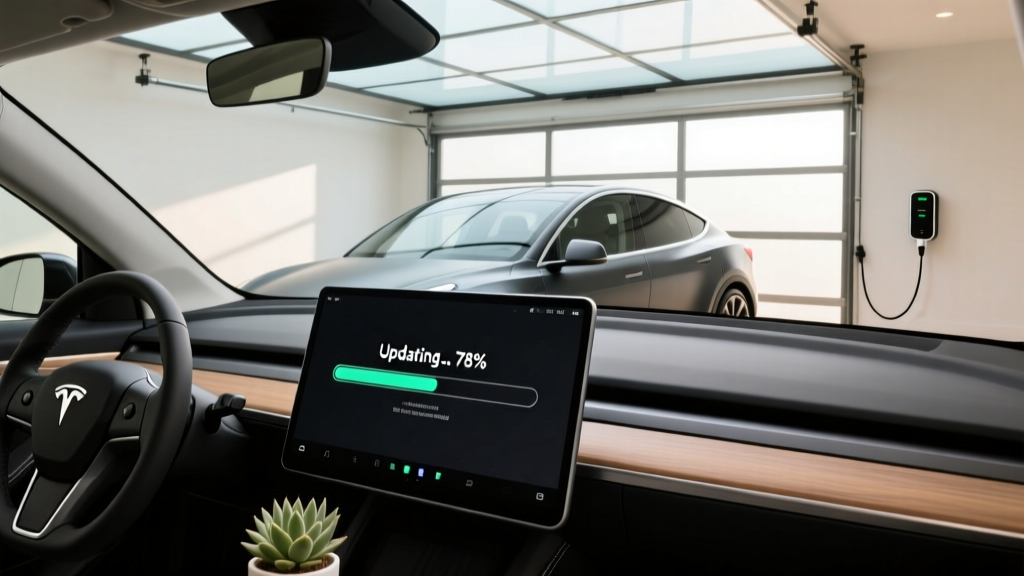
This is where the car becomes temporarily unavailable. Once you initiate installation (or it triggers on your scheduled window), the vehicle will:
- Power down most systems and display a progress bar on the touchscreen
- Update the infotainment computer (MCU), vehicle firmware, and — if applicable — the FSD computer
- Reboot and run self-diagnostics
Standard updates (UI changes, feature additions, bug fixes): 25-45 minutes.
Major updates with FSD Supervised changes: 45-90 minutes. These involve rewriting neural network weights on the HW4 (AI4) computer and take substantially longer.
Phase 3: Post-Update Calibration (Occasional, 20-60 Minutes of Driving)
After certain updates — especially those touching Autopilot or FSD — Tesla may require a camera calibration drive. The car will display a message prompting you to drive on a well-marked road for 20-40 minutes so the vision system can recalibrate. This isn't "downtime" since you're driving normally, but it's a step to be aware of.
Real-World Update Timing Data (2025-2026 Fleet)
Based on tracking across Model 3 Highland, Model Y Juniper, and refreshed Model S/X vehicles running 2025.x and 2026.x firmware branches:
| Update Type | Typical Size | Install Time | Vehicle Usable? |
|---|---|---|---|
| Minor patch (e.g., 2025.38.4 → 2025.38.6) | 100-300 MB | 15-25 minutes | No — during install |
| Standard feature update | 500 MB - 1.5 GB | 25-45 minutes | No — during install |
| Major version bump | 1.5 - 3+ GB | 40-60 minutes | No — during install |
| FSD Supervised neural net update | 2 - 4 GB | 60-90 minutes | No — during install |
Pro tip: Tesla staggers update rollouts. Not every car receives an update simultaneously — your neighbor's identical Model Y might get 2026.2.x a week before yours. This is normal and not a sign of an issue.
How to Schedule Updates Around Your Life
You have significant control over when installations occur:
- Scheduled installation: In Settings → Software, you can set a preferred installation window (e.g., 2:00 AM). The car will begin installing at that time automatically.
- Wi-Fi priority: Always connect your Tesla to home Wi-Fi. Downloads are faster, more reliable, and don't consume the car's cellular data allocation.
- Don't install before a trip: If you need your car at 7:00 AM, don't trigger a manual install at 6:30 AM. Give yourself at least a 90-minute buffer for major updates.
- Keep the car plugged in: Tesla requires the battery to be above 20% to begin installation, and the car draws ~1-2 kW from the charger during the process to power the computers. Being plugged in prevents any 12V or traction battery concerns.
What Happens If an Update Fails?
Failed updates are rare but not unheard of. If installation stalls or the progress bar freezes for more than 90 minutes:
- Do not attempt to drive the vehicle. The car may be in a partially updated state.
- Try a scroll-wheel reset (hold both steering wheel scroll buttons for ~10 seconds until the touchscreen reboots). This often resumes or restarts the installation.
- If that fails, contact Tesla Support via the app. In most cases, they can push a recovery package remotely.
- Worst case: A mobile Ranger visit or service center appointment may be needed. This is covered under warranty.
In five years of ownership across multiple vehicles, I've experienced exactly two failed installations — both resolved with a scroll-wheel reset.
2025-2026 Tesla Lineup: Hardware Behind the Updates
Software updates improve the car, but the hardware defines what's possible. Here's a spec snapshot of the current Tesla fleet to contextualize what you're updating:
| Spec | Model 3 (Highland) | Model Y (Juniper) | Model S | Model X |
|---|---|---|---|---|
| EPA Range (max) | 363 mi (LR RWD) | 320 mi (LR AWD) | 402 mi (LR) | 335 mi (LR) |
| Battery (usable) | ~79 kWh (NMC) | ~79 kWh (NMC) | ~95 kWh (NMC) | ~95 kWh (NMC) |
| Max DC Charge | 250 kW | 250 kW | 250 kW | 250 kW |
| 10-80% DC Time | ~27 min | ~27 min | ~30 min | ~32 min |
| Level 2 Rate | 11.5 kW (~44 mi/hr) | 11.5 kW (~44 mi/hr) | 11.5 kW (~37 mi/hr) | 11.5 kW (~34 mi/hr) |
| 0-60 mph | 5.8s (RWD) / 4.2s (LR) | 6.5s (RWD) / 4.8s (LR) | 3.1s (Plaid) | 2.5s (Plaid) |
| Drivetrain | RWD or Dual-Motor AWD | RWD or Dual-Motor AWD | Dual/Tri-Motor AWD | Dual/Tri-Motor AWD |
| Base MSRP | $38,990 | $44,990 | $74,990 | $79,990 |
| Federal Tax Credit | Up to $7,500 (§30D) | Up to $7,500 (§30D) | Not eligible (MSRP cap) | Not eligible (MSRP cap) |
| Computer | HW4 (AI4) | HW4 (AI4) | HW4 (AI4) | HW4 (AI4) |
Source: fueleconomy.gov and Tesla's official specs page. Prices reflect 2025-2026 model year MSRP before destination fees.
FSD Supervised Updates: The Longest Wait Times
If you've purchased or subscribed to Full Self-Driving (Supervised), expect the longest update durations. FSD updates involve downloading new neural network models that can exceed 3-4 GB and rewriting the inference stack on the HW4 computer.
Key points about FSD updates:
- Installation time: 60-90 minutes is typical for major FSD version bumps (e.g., v13.x → v14.x).
- Calibration drive: Often required after FSD updates — plan for 20-40 minutes of driving on well-marked roads.
- Rollback: Tesla occasionally rolls back FSD versions if safety regressions are detected. This is another OTA process with similar timing.
Tax Credit Eligibility and Pricing (2025-2026)
The federal EV tax credit under IRS §30D remains available for qualifying Tesla purchases, but eligibility depends on several factors:
- MSRP cap: Sedans (Model 3) must have an MSRP ≤ $55,000. SUVs/trucks (Model Y) must be ≤ $80,000. The Model S and Model X exceed these caps and do not qualify.
- Buyer income cap: Modified adjusted gross income must not exceed $150,000 (single), $225,000 (head of household), or $300,000 (joint filing).
- Battery sourcing: A percentage of critical minerals and battery components must be sourced from the U.S. or FTA-partner countries. Tesla's supply chain has largely met these thresholds for U.S.-built vehicles, but the exact credit amount ($3,750 or $7,500) depends on the specific build and current IRS guidance.
- Point-of-sale transfer: As of 2024, you can transfer the credit to the dealer at purchase, reducing your out-of-pocket cost immediately rather than waiting for tax filing.
Always consult a tax professional and verify current rules at irs.gov before purchasing. Incentive rules are subject to legislative change.
Frequently Asked Questions
Can I drive my Tesla while a software update is downloading?
Yes. Downloads happen in the background and do not affect drivability. You'll see a "Downloading" indicator in the software menu, but the car operates normally.
Can I drive during the installation phase?
No. Once installation begins, the vehicle is inoperable — the touchscreen goes dark or shows a progress bar, and the car cannot be shifted into drive. Plan accordingly.
Does Tesla notify me before an update?
Yes. You'll receive a notification on the touchscreen and in the Tesla app when a download is complete and the update is ready to install. You choose when to begin installation (or set a scheduled window).
Will an update reduce my car's range or performance?
Rarely. Most updates improve efficiency or add features. However, Tesla has occasionally adjusted battery management parameters via OTA — sometimes slightly reducing maximum charge capacity in specific model years to ensure long-term battery health. These changes are documented in update release notes.
How do I check my current software version?
Tap Controls → Software on the touchscreen. You'll see your version number (e.g., 2026.2.7) and whether an update is available or downloading.
Do I need Wi-Fi for Tesla updates?
Wi-Fi isn't required but is strongly recommended. Cellular downloads are slower and may be throttled. Tesla prioritizes Wi-Fi for large packages, and some updates may not begin downloading until a Wi-Fi connection is available.
What if I'm on a road trip when an update arrives?
The download will proceed in the background (if on Wi-Fi at a hotel or stop), but you can defer installation indefinitely. The car won't force an install — you initiate it manually or via your scheduled window.
Key Takeaways for Tesla Owners
- Standard updates: 25-45 minutes installation. Schedule overnight or during work hours.
- FSD updates: 60-90 minutes. Plan for a longer window and possible calibration drive.
- Always use Wi-Fi for faster, more reliable downloads.
- Keep the car plugged in during installation to avoid battery-related interruptions.
- Don't panic on failures — a scroll-wheel reset resolves most stalled installations.
Tesla's OTA update system remains one of the strongest differentiators in the EV market. Understanding the timing and process ensures you get the most from your vehicle without unexpected downtime.