If you've searched for how to need setup key from tesla for google authenticator, you're not alone. Tesla's two-factor authentication (2FA) system protects your vehicle, home charging, and Powerwall from unauthorized access — but the setup process can be confusing. This guide walks you through exactly how to obtain your Tesla setup key, configure Google Authenticator (or any TOTP app), and understand why this matters for every Tesla owner in 2026.
While AutoEdgeView primarily covers EV performance, range, and ownership economics, account security is a critical — and often overlooked — part of the Tesla ownership experience. A compromised Tesla account can allow remote unlocking, location tracking, and even vehicle theft. Let's get your 2FA configured correctly.
Why Tesla Requires Two-Factor Authentication in 2026
Tesla made 2FA mandatory for most account actions starting in 2021, and by 2026 the requirement has only expanded. You now need 2FA verification to:
- Log into the Tesla app on a new device
- Access your Tesla account via the web portal
- Pair a new phone key with your vehicle
- Initiate remote commands (unlock, start, Summon)
- Transfer vehicle ownership or remove a driver
- Access Powerwall and Solar Roof dashboards
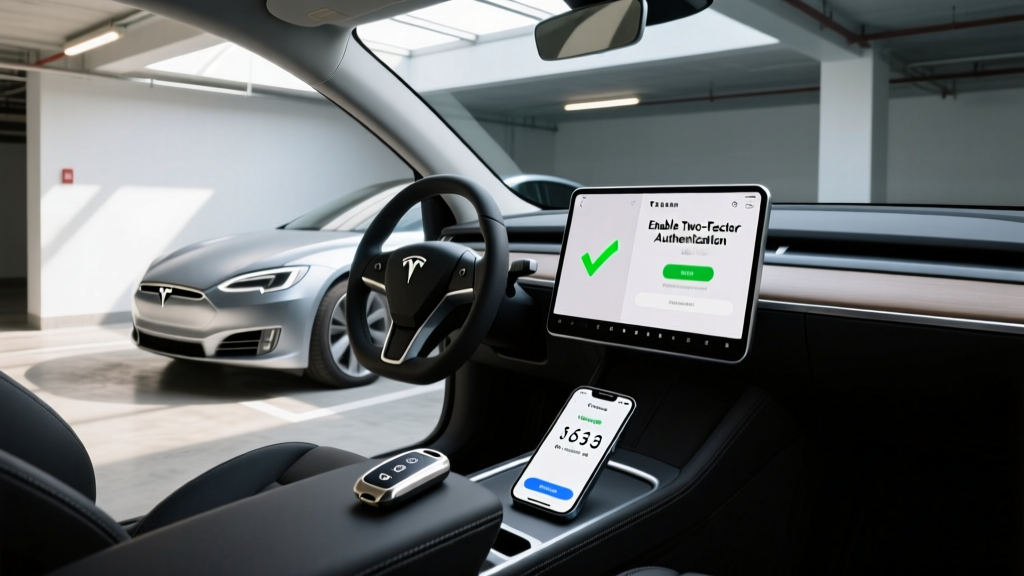
Tesla uses the Time-based One-Time Password (TOTP) protocol — the same standard used by Google Authenticator, Authy, 1Password, and Microsoft Authenticator. When you enable 2FA, Tesla generates a setup key (a Base32-encoded secret string) that seeds your authenticator app. Both your app and Tesla's servers then generate matching 6-digit codes every 30 seconds.
How to Get Your Tesla Setup Key for Google Authenticator
The "setup key" is the secret code Tesla provides when you first enable two-factor authentication. Here's the step-by-step process to obtain it:
Step 1: Access Tesla Account Security Settings
Navigate to tesla.com/teslaaccount and sign in. Click on Account → Security Settings. You'll see the Two-Factor Authentication section.
Step 2: Enable Two-Factor Authentication
Toggle 2FA to On. Tesla will present you with two options:
- Scan a QR code — Use Google Authenticator's camera to scan directly
- Enter a setup key manually — Tesla displays a text string (typically 16-32 characters, Base32 format like
JBSWY3DPEHPK3PXP)
The setup key is the text alternative to the QR code. You need it when your phone can't scan the QR code, when you're setting up a desktop authenticator, or when configuring multiple devices.
Step 3: Enter the Setup Key in Google Authenticator
In Google Authenticator:
- Tap the + button
- Select Enter a setup key
- Type an account name (e.g., "Tesla - Model Y")
- Paste or type the setup key from Tesla exactly as displayed
- Ensure Time-based is selected (not Counter-based)
- Tap Add
Step 4: Verify and Save Recovery Codes
Google Authenticator will now generate a 6-digit code. Enter this code on Tesla's website to confirm the pairing. Tesla will then display backup recovery codes — typically 8-10 single-use codes. Store these securely.
Troubleshooting: When the Setup Key Doesn't Work
If Google Authenticator rejects your Tesla setup key or generates codes that Tesla doesn't accept, check these common issues:
| Problem | Cause | Solution |
|---|---|---|
| Code rejected by Tesla | Phone clock is out of sync | In Google Authenticator: Settings → Time correction for codes → Sync now |
| Setup key "invalid format" | Extra spaces or lowercase letters | Remove spaces; Base32 keys are uppercase A-Z and 2-7 only |
| QR code won't scan | Screen brightness or glare | Use the manual setup key entry instead |
| Old codes stopped working | 2FA was reset on Tesla's side | Generate a new setup key via Security Settings |
| Codes work but 2FA still fails | Wrong account selected in app | Verify the Tesla entry is highlighted, not another service |
If you've lost your original setup key and can't access your authenticator, you'll need to use one of your backup recovery codes to log in, then disable and re-enable 2FA to generate a fresh setup key.
Tesla Account Security Beyond 2FA: What Every Owner Should Configure
Two-factor authentication is the foundation, but a fully secured Tesla account in 2026 includes these additional layers:
Phone Key Management
Each Tesla vehicle supports up to 19 paired phone keys. Periodically audit which devices are paired via your vehicle's touchscreen (Controls → Locks) and remove any you don't recognize. A stolen phone with the Tesla app logged in — even with 2FA — can be a risk if the session token is still active.
Valet Mode and PIN to Drive
Enable PIN to Drive (Controls → Safety) to require a 4-digit PIN before the car can be driven, even with a valid phone key. This protects against relay attacks and phone theft. Valet Mode restricts speed, locks the frunk and glovebox, and hides your home address from navigation.
Sentry Mode and Dashcam
While not directly related to account security, Sentry Mode records surroundings when the vehicle is parked and locked, providing evidence in case of break-in attempts. Ensure your USB drive or glovebox SSD is properly formatted for continuous recording.
Disable Remote Access When Storing the Vehicle
If your Tesla will be parked for an extended period (e.g., at an airport for a week), consider disabling Mobile Access via the touchscreen (Controls → Safety → Mobile Access). This prevents any remote commands until you re-enable it from inside the car.
How Tesla 2FA Compares to Other Automaker Security Systems
Tesla's TOTP-based 2FA is robust, but how does it compare to what other EV manufacturers offer?
| Automaker | 2FA Method | Authenticator App Support | Phone Key Security |
|---|---|---|---|
| Tesla | TOTP (Google Authenticator, Authy, etc.) | Yes — any TOTP app | Bluetooth + BLE encryption, PIN to Drive |
| Ford (BlueCruise) | SMS/email code | No — FordPass uses push notification | Phone-as-a-key via FordPass |
| Hyundai/Kia | SMS verification | No — Bluelink uses SMS + PIN | Digital Key via NFC + BLE |
| BMW | BMW ID with 2FA via SMS or app | Partial — BMW app push only | Digital Key Plus (UWB) |
| Rivian | SMS + email verification | No — Rivian app push | Phone Key via BLE, Gear Guard |
Tesla's support for any standard TOTP authenticator app gives owners more flexibility and better backup options than automakers locked to SMS-only verification. SMS-based 2FA is vulnerable to SIM-swapping attacks, making TOTP significantly more secure for protecting a $40,000+ vehicle.
Frequently Asked Questions About Tesla Setup Keys and 2FA
Can I use the same Tesla setup key on two different phones?
Yes. The setup key is a shared secret — entering the identical key into Google Authenticator on two different phones will produce identical 6-digit codes on both devices simultaneously. This is a reliable backup strategy if you carry a work phone and a personal phone.
What happens if I delete Google Authenticator without saving my setup key?
If you still have access to your Tesla account (e.g., via a logged-in browser session), go to Security Settings, disable 2FA, and re-enable it to generate a new setup key. If you're completely locked out, use one of your backup recovery codes to log in, then reset 2FA. If you've lost both, contact Tesla Support with identity verification documents.
Does Tesla support hardware security keys like YubiKey?
As of 2026, Tesla does not natively support FIDO2/WebAuthn hardware security keys for account login. The supported 2FA method is TOTP via authenticator apps. However, you can use a YubiKey to protect the email account associated with your Tesla login, adding an indirect layer of security.
How often should I rotate my Tesla 2FA setup key?
TOTP secrets don't expire and don't need routine rotation. However, you should generate a new setup key if you suspect your authenticator device was compromised, if you sold a phone that had Google Authenticator installed, or if you notice unrecognized login attempts in your Tesla account activity log.
Can someone steal my Tesla remotely if they hack my account?
With 2FA enabled, an attacker would need both your password AND your authenticator code (or a recovery code). Additionally, Tesla's Phone Key pairing requires physical proximity (Bluetooth) to the vehicle for driving. Remote commands like unlocking can be executed, but PIN to Drive prevents the vehicle from being driven without the PIN. Enable both 2FA and PIN to Drive for maximum protection.
Why does Tesla ask for a 2FA code every time I open the app?
Tesla typically caches your authenticated session for 30 days on a trusted device. If you're prompted more frequently, check that you selected "Trust this device" during login, ensure your Tesla app is updated, and verify that your phone's date/time settings are set to automatic (incorrect time can invalidate TOTP codes).
Final Security Checklist for Tesla Owners
Before you close this guide, verify your Tesla account has these protections active:
- ✅ Two-factor authentication enabled via TOTP (Google Authenticator or equivalent)
- ✅ Backup recovery codes saved in a secure, offline location
- ✅ Strong, unique password (not reused from other services)
- ✅ PIN to Drive enabled on all vehicles
- ✅ Unrecognized phone keys removed from paired devices list
- ✅ Sentry Mode active when parked in public
- ✅ Tesla app updated to latest version
- ✅ Associated email account protected with 2FA
Tesla's setup key process for Google Authenticator is straightforward once you know where to look. The few minutes spent configuring proper 2FA protects not just your account data, but physical access to a vehicle that can be remotely commanded. In an era of increasing digital car theft, this is non-negotiable EV ownership hygiene.