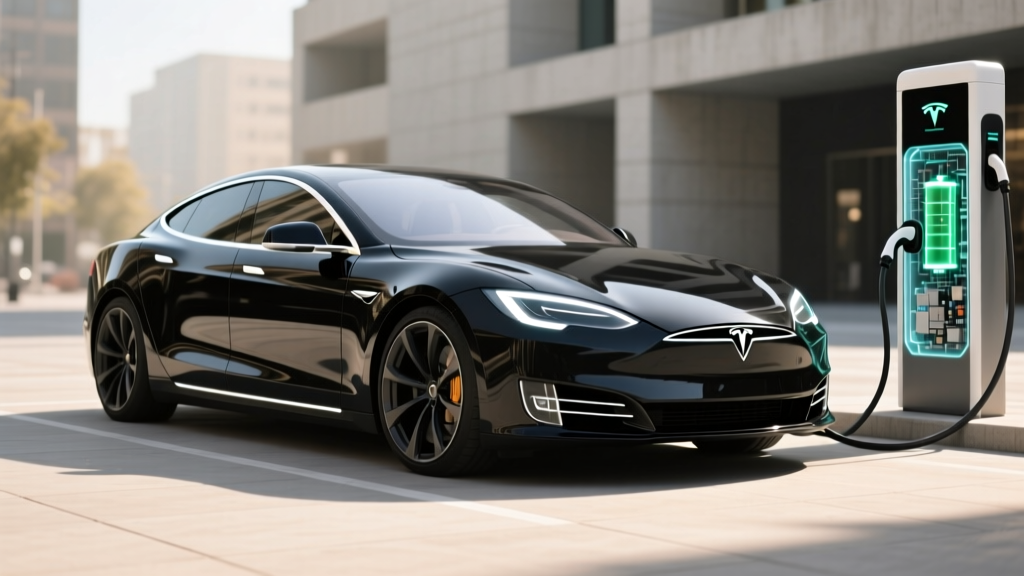
If you've ever tried to work from a parking lot, stream a movie at a Supercharger, or keep the kids' tablets online during a road trip, you've probably wondered about using a mobile hotspot for Tesla connectivity. Tesla vehicles come with built-in cellular modems, but turning that connection into a usable Wi-Fi hotspot for your devices isn't as straightforward as tapping a button on your phone. Here's everything you need to know about Tesla's connectivity ecosystem in 2026 — what's included, what costs extra, and how to actually get your laptop online from the driver's seat.
How Tesla's Built-In Cellular and Wi-Fi Actually Works
Every Tesla sold new in 2026 ships with a built-in LTE/5G cellular modem and a Wi-Fi radio. However, Tesla segments connectivity into two tiers:
- Standard Connectivity — included with every vehicle at no extra cost. This covers basic navigation, traffic-aware routing, and over-the-air (OTA) software updates via Wi-Fi. It does not include satellite-view maps, live traffic visualization, media streaming (Spotify, YouTube, Netflix), or the in-car web browser.
- Premium Connectivity — a $9.99/month or $99/year subscription that unlocks satellite maps, live traffic, Sentry Mode live camera access via the Tesla app, video streaming, Caraoke, and the web browser.
Here's the critical distinction that catches many owners off guard: Tesla does not offer a traditional mobile hotspot feature that broadcasts the car's cellular connection to your personal devices the way a smartphone or dedicated MiFi puck does. The car's cellular modem is reserved for Tesla's own services — navigation, streaming, OTA updates, and remote app features. You cannot connect your laptop to the Tesla's cellular data directly.
Your Real Options for Wi-Fi on the Road in a Tesla
Since Tesla's cellular modem won't share its connection with your devices, here are the practical alternatives Tesla owners actually use in 2026:
1. Smartphone Personal Hotspot (Most Common)
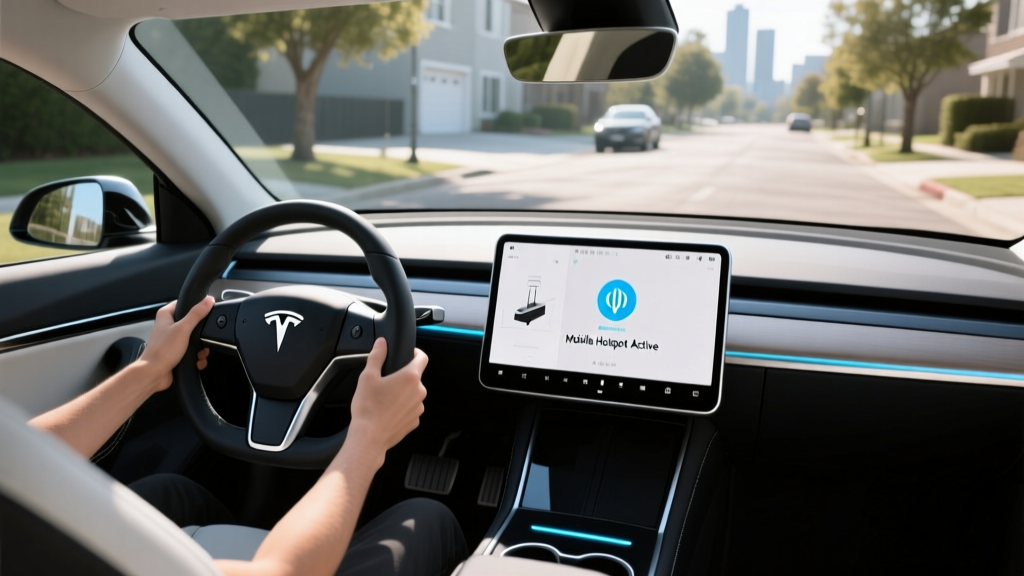
Your iPhone or Android phone can broadcast a Wi-Fi hotspot that your Tesla — and your other devices — can connect to. This is the most popular method. Go to your phone's Settings → Personal Hotspot → enable it, then connect your Tesla's Wi-Fi radio to it via the car's touchscreen (Controls → Wi-Fi). This also gives your Tesla's navigation real-time traffic data and enables media streaming without Premium Connectivity.
2. Dedicated Mobile Hotspot Device (MiFi / Jetpack)
Carriers like Verizon, AT&T, and T-Mobile offer dedicated 5G hotspot devices (e.g., Inseego MiFi, Netgear Nighthawk) with data plans ranging from 50 GB to unlimited. These sit in your center console and provide a stronger, more stable signal than a phone hotspot. Plans typically run $30–$85/month depending on data allocation.
3. Starlink Roam / Satellite Internet
For overlanding or remote-area Tesla camping, Starlink's Roam plan ($150/month for regional, $200/month for global) provides satellite internet anywhere with a clear sky view. The Mini dish fits in a Tesla frunk or cargo area. This is the premium option for digital nomads who take their Model Y or Model X off-grid.
4. Tesla's Wi-Fi at Superchargers and Service Centers
Many Tesla Supercharger stations and service centers now offer complimentary Wi-Fi. When parked, your Tesla can automatically connect, enabling faster OTA updates and letting you stream video while charging. Check the Tesla app or in-car map for Wi-Fi-enabled locations.
Premium Connectivity: Is It Worth $99/Year?
If your primary goal is keeping the car's systems connected — satellite maps, live traffic, Sentry Mode live view, Spotify/YouTube streaming — Premium Connectivity is the straightforward answer. Here's what you get versus Standard:
| Feature | Standard (Free) | Premium ($9.99/mo) |
|---|---|---|
| Basic navigation & routing | ✅ | ✅ |
| Satellite-view maps | ❌ | ✅ |
| Live traffic visualization | ❌ | ✅ |
| Video streaming (Netflix, YouTube) | ❌ | ✅ |
| Music streaming (Spotify, Tidal) | ❌ | ✅ |
| Caraoke | ❌ | ✅ |
| Sentry Mode live camera view | ❌ | ✅ |
| Web browser | ❌ | ✅ |
| OTA updates via cellular | Limited | ✅ |
The verdict: If you already pay for a phone hotspot or carry a MiFi device, you can connect the Tesla to that network and unlock most streaming features without Premium Connectivity. But for $99/year, Premium is the lowest-friction option if you value satellite maps and Sentry Mode live view.
How This Plays Out Across the 2026 Tesla Lineup
Connectivity hardware is identical across the current Tesla fleet — every 2026 Model 3, Model Y, Model S, and Model X uses the same cellular modem and Wi-Fi radio. The differences that matter are how you'll use each vehicle and what your connectivity needs look like:
| Model | EPA Range | Battery (kWh) | Max DC kW | 10-80% Time | Base MSRP |
|---|---|---|---|---|---|
| Model 3 Long Range AWD | 363 mi | ~79 kWh (NMC) | 250 kW | ~25 min | $47,740 |
| Model Y Long Range AWD | 320 mi | ~78 kWh (NMC) | 250 kW | ~27 min | $48,990 |
| Model S Long Range | 402 mi | ~100 kWh (NMC) | 250 kW | ~30 min | $79,990 |
| Model X Long Range | 335 mi | ~100 kWh (NMC) | 250 kW | ~32 min | $84,990 |
Sources: fueleconomy.gov, Tesla.com. EPA range varies by wheel size and configuration. Real-world highway range is typically 10-15% below EPA; cold weather (below 32°F) can reduce range 20-30%.
Connecting Your Devices to a Tesla: Step-by-Step
While you can't use the Tesla as a hotspot, you can connect devices to the car's Wi-Fi when it's connected to a known network, and you can connect the car to your phone's hotspot. Here's the workflow:
Connecting Tesla to Your Phone Hotspot
- On your phone: Settings → Personal Hotspot → Turn On
- On Tesla touchscreen: Tap the Wi-Fi icon in the top status bar
- Select your phone's network name from the list
- Enter the hotspot password displayed on your phone
- The Tesla now routes its traffic through your phone's data connection
Using the Tesla's Wi-Fi for OTA Updates
For large software updates (which can exceed 1 GB), Tesla strongly recommends connecting to a home Wi-Fi network. Updates over cellular are throttled and may take significantly longer. When parked at home, connect the car to your home Wi-Fi via Controls → Wi-Fi → select your network. The car will remember this network and auto-connect when in range.
Passenger Device Internet: The Hotspot Workaround
For passengers needing internet (laptops, tablets, gaming devices), the most reliable setup is a dedicated 5G hotspot device placed in the center console or rear seat area. A Verizon Inseego MiFi X Pro 5G, for example, supports up to 30 connected devices and delivers 100-300 Mbps in areas with strong 5G coverage — more than enough for video calls, streaming, and web browsing simultaneously.
Tesla Data Usage: How Much Does the Car Actually Consume?
If you're connecting your Tesla to your phone's hotspot and worried about data burn, here's a realistic breakdown of Tesla's cellular data consumption based on owner-reported figures:
- Navigation & traffic: ~20-40 MB/month (minimal)
- OTA updates: 500 MB to 2+ GB per update (varies by release size)
- Music streaming (Spotify/Tidal): ~50-100 MB/hour depending on quality setting
- Video streaming (Netflix/YouTube): ~700 MB/hour at standard quality, up to 3 GB/hour at HD
- Sentry Mode live view: ~200-500 MB/hour of active viewing
If you're on a limited phone data plan, video streaming and frequent Sentry Mode live viewing are the biggest data hogs. Music streaming and navigation are negligible. Tesla does not publish an official data cap for Premium Connectivity, but heavy video streaming may be subject to throttling under Tesla's acceptable use policy.
Pros, Cons, and the Bottom Line on Tesla Connectivity
✅ Pros
- Built-in cellular modem means the car is always connected for nav, OTA updates, and remote app access — no phone required
- Premium Connectivity at $99/year is competitively priced vs. GM's OnStar or BMW's ConnectedDrive
- Wi-Fi radio connects easily to phone hotspots and home networks
- Sentry Mode live camera view is genuinely useful for parking security
- OTA updates over home Wi-Fi are fast and reliable
❌ Cons
- No built-in mobile hotspot — cannot share cellular connection with personal devices
- Premium Connectivity is required for basic features like the web browser and video streaming
- Heavy video streaming on Premium Connectivity may be throttled
- OTA updates over cellular are slow and limited without Wi-Fi
- No Ethernet or USB tethering option for more stable in-car internet
Frequently Asked Questions
Can I use my Tesla as a Wi-Fi hotspot for my laptop?
No. Tesla does not provide a mobile hotspot feature that shares the vehicle's cellular data connection with external devices. The car's modem is dedicated to Tesla's own services. For laptop connectivity on the go, use your phone's personal hotspot or a dedicated 5G MiFi device.
Does Premium Connectivity give me unlimited data for streaming?
Tesla does not publish a hard data cap for Premium Connectivity. In practice, moderate music and video streaming works without issue. However, Tesla's terms of service reserve the right to throttle or restrict connections that consume "excessive" bandwidth. For heavy streaming needs (multiple hours of HD video daily), a dedicated hotspot with an unlimited plan is more reliable.
Can passengers watch Netflix on the Tesla screen without Premium Connectivity?
Not over the car's cellular connection. Video streaming requires either Premium Connectivity or a Wi-Fi connection (home network, phone hotspot, or dedicated hotspot device). If you connect the Tesla to your phone's hotspot, Netflix and YouTube will work without a Premium subscription.
Will Tesla ever add a true mobile hotspot feature?
As of 2026, Tesla has not announced plans to add device-sharing hotspot functionality. The hardware (cellular modem + Wi-Fi radio) technically supports it, but Tesla has kept the modem dedicated to vehicle services. This could change with a future OTA update, but there is no confirmed timeline.
How do I get the best cell signal in my Tesla?
Tesla's cellular antenna is integrated into the vehicle's roof/glass area. Signal quality generally matches or slightly exceeds a handheld phone in the same location. In areas with marginal coverage, a dedicated 5G hotspot device with an external antenna port can provide stronger connectivity than the car's built-in modem.
Does connecting my Tesla to my phone hotspot drain my phone battery?
Yes — running a personal hotspot is one of the most battery-intensive tasks for a smartphone. Expect 15-25% additional battery drain per hour of active hotspot use. Keep your phone plugged into the Tesla's USB-C port (up to 27W charging on 2026 models) while hotspotting to offset this drain.
The Bottom Line
Tesla's built-in connectivity is excellent for the car's own systems — navigation, OTA updates, streaming, and remote features. But if you came here looking for a mobile hotspot for Tesla devices like your laptop or tablet, the answer is that Tesla doesn't offer one natively. Your best options in 2026 remain a phone personal hotspot for casual use, a dedicated 5G MiFi device for heavy work-from-car needs, or Starlink Roam for off-grid scenarios. Premium Connectivity at $99/year is worth it for the convenience it brings to the car's own interface, but it won't replace your phone plan's hotspot allowance.