Tesla's built-in dashcam and Sentry Mode are among the most useful security features in any EV, but they only work if your USB drive is set up correctly. A surprising number of Tesla owners run into recording failures, corrupted clips, or sluggish playback simply because they plugged in the wrong flash drive or skipped a formatting step. This guide walks through exactly which USB drives work best, how to configure them for Tesla's dashcam system, and how to manage storage so you never miss a critical clip.
Whether you drive a 2026 Model 3 Highland, a refreshed Model Y, or a Cybertruck, the dashcam USB requirements are largely the same across Tesla's current fleet. We'll also touch on how Tesla's dashcam system compares to aftermarket solutions and what storage capacity you actually need based on your driving habits.
How Tesla's Dashcam and Sentry Mode Use Your USB Drive
Tesla's dashcam system records from up to four cameras simultaneously (front, rear, left repeater, right repeater) whenever the vehicle is in Drive. Clips are saved in one-minute segments and stored in a TeslaCam folder on your USB drive. There are three subfolders:
- RecentClips — Continuously overwritten loop of the last hour of driving footage
- SavedClips — Manually saved footage (tap the dashcam icon or honk the horn with the setting enabled)
- SentryClips — Events captured by Sentry Mode while parked, triggered by motion or impacts
Sentry Mode is the bigger storage consumer. When active, it records events that can range from 10 seconds to several minutes each. If you park in high-traffic areas — apartment garages, busy street parking, grocery lots — Sentry Mode can generate dozens of clips per day, filling a small drive quickly.
Best USB Drives for Tesla Dashcam in 2026
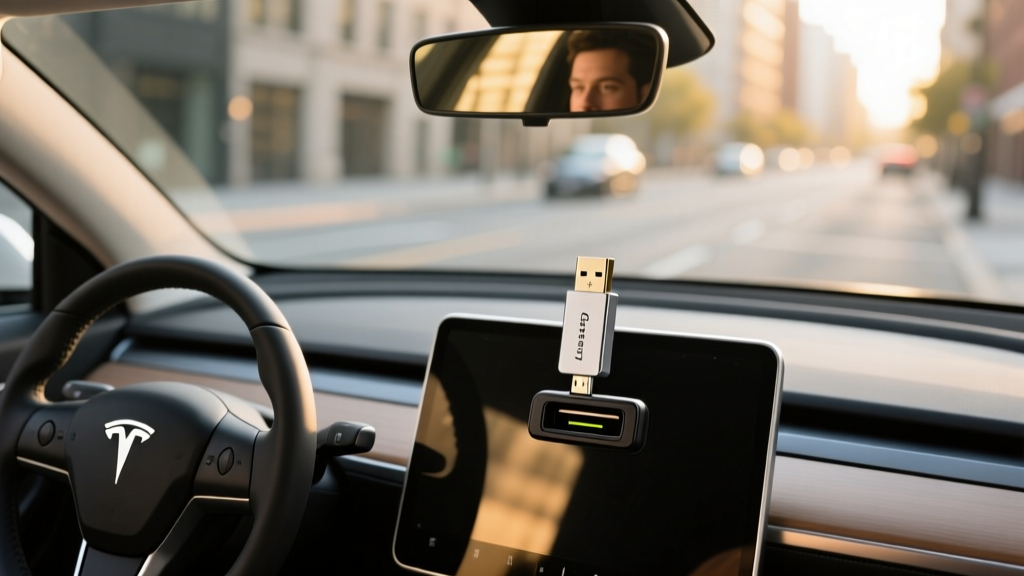
Not all USB flash drives handle the constant read/write cycles that Tesla's dashcam system demands. Dashcam recording is essentially continuous write operation, which degrades cheap NAND flash quickly. Here's what works best:
| Drive | Capacity | Interface | Endurance Rating | Approx. Price |
|---|---|---|---|---|
| Samsung BAR Plus | 128 GB / 256 GB | USB 3.1 | High (TLC NAND) | $15–$25 |
| SanDisk High Endurance | 128 GB / 256 GB | USB 3.0 | Very High (designed for dashcams) | $18–$30 |
| Samsung PRO Endurance (via adapter) | 128 GB / 256 GB | microSD + USB-A adapter | Exceptional (up to 140,000 hrs) | $22–$40 |
| Kingston Canvas Go! Plus (via adapter) | 256 GB | microSD + USB-A adapter | High | $25–$35 |
Key takeaway: High-endurance drives matter more than raw speed. Tesla's dashcam doesn't need USB 3.2 Gen 2 bandwidth — it needs sustained write reliability over months and years. Budget drives with TLC or QLC NAND without endurance ratings tend to fail within 6–12 months of continuous dashcam use.
Step-by-Step: Formatting Your USB Drive for Tesla Dashcam
Tesla's infotainment system can format drives directly, which is the easiest path. Here's the process:
- Insert the USB drive into one of the USB-A or USB-C ports in your Tesla's center console or glovebox (depending on model year — 2024+ Model 3 Highland and 2025+ Model Y Juniper use USB-C primarily, with a glovebox USB-A port for dashcam).
- Navigate to Controls > Safety > Dashcam on the touchscreen.
- Tap "Format USB Drive." Tesla will format it to exFAT and create the TeslaCam folder structure automatically.
- Wait for confirmation — the dashcam icon should appear in the top status bar with no warning indicators.
If Tesla's built-in formatter fails (common with drives larger than 512 GB or drives previously used with other file systems), format manually:
- Windows: Right-click the drive > Format > File System: exFAT > Allocation Unit Size: Default > Start
- macOS: Disk Utility > Erase > Format: exFAT > Scheme: GUID Partition Map > Erase
- After formatting, create a folder named exactly TeslaCam (case-sensitive) in the root directory
How Much Storage Do You Actually Need?
Storage requirements depend heavily on how you use Sentry Mode and how often you review footage:
| Usage Pattern | Daily Footage | Recommended Capacity | Drive Fill Time |
|---|---|---|---|
| Dashcam only (no Sentry) | ~1.5 GB/hr driving | 64–128 GB | Loop overwrites continuously |
| Moderate Sentry (suburban parking) | 3–8 GB/day | 128–256 GB | 2–4 weeks before oldest Sentry clips overwritten |
| Heavy Sentry (urban, apartment garage) | 10–25 GB/day | 256–512 GB | 5–10 days before overwrite |
| Fleet/commercial (high exposure) | 25+ GB/day | 512 GB–1 TB | Varies; review weekly |
Four-camera recording at Tesla's current resolution generates roughly 1.5 GB per hour of combined footage. Sentry Mode events vary: a 10-second triggered event across four cameras uses about 200–300 MB. If your parking spot sees frequent motion triggers, those add up fast.
For most owners, a 256 GB high-endurance drive is the sweet spot — enough capacity for weeks of Sentry clips without paying a premium for storage you'll rarely fill.
USB Port Location by Tesla Model (2026 Fleet)
Tesla has shifted USB port configurations across model years. Here's where to plug in your dashcam drive:
- Model 3 Highland (2024+): Glovebox USB-A port is the designated dashcam port. Center console USB-C ports are for charging and media only.
- Model Y Juniper (2025+): Glovebox USB-A port for dashcam. Rear-seat USB-C ports handle device charging.
- Model S/X (2023+ refresh): Center console front USB-A port or glovebox port, depending on build date.
- Cybertruck: Glovebox USB-A port for dashcam/Sentry; USB-C ports in front and rear for device charging.
Managing and Reviewing TeslaCam Footage
You have three ways to review dashcam and Sentry Mode clips:
- In-car viewer: Tap the dashcam icon on the touchscreen to browse RecentClips, SavedClips, and SentryClips. The viewer supports multi-camera playback but is basic — scrubbing is imprecise and the screen is small.
- Computer review: Remove the USB drive, plug it into a PC or Mac, and navigate the TeslaCam folders. Video files are standard .mp4 — playable in VLC, QuickTime, or any modern media player. Each clip is labeled with timestamp and camera (front, left-repeater, right-repeater, back).
- Third-party apps: Tools like TeslaCam Viewer (Windows) and Tesla Dashcam Manager (cross-platform) stitch multi-camera views into a single composite video with timestamps overlaid — useful for insurance claims or police reports.
For insurance documentation, always save clips to a computer or cloud storage immediately. Sentry clips in the SentryClips folder are eventually overwritten as the drive fills, and you don't want a critical hit-and-run recording lost to routine loop deletion.
Troubleshooting Common Tesla Dashcam USB Issues
| Problem | Likely Cause | Fix |
|---|---|---|
| Dashcam icon shows red X | Drive not formatted or TeslaCam folder missing | Re-format via Controls > Safety > Dashcam |
| Clips stop saving after weeks | NAND wear on low-endurance drive | Replace with high-endurance drive |
| "USB drive too slow" warning | Drive write speed insufficient for 4-cam recording | Use USB 3.0+ drive with ≥20 MB/s sustained write |
| Sentry Mode won't activate | Drive full or not detected; Sentry disabled in settings | Check Controls > Safety > Sentry Mode; clear old clips |
| Corrupted .mp4 files | Unsafe ejection or failing drive sectors | Re-format drive; if recurring, replace drive |
| Glovebox drive not recognized | Using wrong port or USB-C without adapter | Ensure USB-A connection in designated glovebox port |
Tesla Dashcam vs. Aftermarket Dashcams: Which Is Better?
Tesla's integrated system has clear advantages and some real limitations compared to dedicated aftermarket units:
Tesla Integrated Dashcam — Pros
- Four-camera coverage (front, rear, both sides)
- Sentry Mode parking surveillance included
- No windshield mount or wiring needed
- Integrated into vehicle UI — no extra screen
- GPS and speed data embedded in clips
Tesla Integrated Dashcam — Cons
- Lower resolution than premium aftermarket (no 4K option)
- Night image quality lags behind Sony-sensor dashcams
- No cabin camera recording (unless robotaxi fleet)
- 1-minute clip limit; no continuous long-form recording
- Relies on USB drive — one point of failure
For most Tesla owners, the integrated system is sufficient — the four-camera Sentry Mode coverage alone outweighs the resolution gap. If you need forensic-grade night footage or cabin recording for rideshare, consider supplementing with a dedicated front-facing 4K dashcam like the Viofo A229 Pro or BlackVue DR970X.
Frequently Asked Questions
Can I use a USB-C flash drive for Tesla dashcam?
On 2024+ Model 3 Highland and 2025+ Model Y Juniper, the designated dashcam port in the glovebox is USB-A. You'll need either a USB-A drive or a USB-C drive with a USB-C-to-A adapter. The center console USB-C ports do not support dashcam recording on most builds — they're reserved for device charging and media playback.
Does the Tesla dashcam record audio?
No. Tesla's dashcam and Sentry Mode record video only — there is no audio capture. This is a privacy design choice and also sidesteps two-party consent wiretapping laws in states like California and Florida.
How long does Tesla keep Sentry Mode clips before overwriting?
Tesla uses a first-in-first-out system. Once the SentryClips folder approaches the drive's capacity limit, the oldest clips are deleted automatically. On a 256 GB drive with moderate urban Sentry use, expect roughly 2–3 weeks of clip retention before the oldest events are overwritten.
Will a larger USB drive (1 TB+) cause problems?
Tesla's system handles drives up to 1 TB reliably when formatted to exFAT. Some owners report issues with 2 TB drives, particularly slower initialization times and occasional detection failures. For most use cases, 256–512 GB provides ample capacity without pushing compatibility limits.
Does Sentry Mode drain the battery significantly?
Yes — Sentry Mode consumes roughly 1–2 miles of range per hour of active monitoring, depending on how many events trigger camera recording. Over a 24-hour park, expect 25–40 miles of range loss. Tesla automatically disables Sentry Mode when the battery drops below 20% to preserve driving range. For long-term parking, disable Sentry or plug in to a Level 2 charger.
Can I view TeslaCam footage on my phone without removing the drive?
Not directly. Tesla does not currently offer in-app remote viewing of stored dashcam clips. You must physically remove the USB drive and view clips on a computer or phone (via USB adapter). Some third-party Tesla data apps pull event notifications, but the actual video files require physical drive access.
For the latest Tesla dashcam firmware features and USB compatibility updates, check your vehicle's release notes after each OTA update, or reference Tesla's official owner's manual.