Why Tesla Cam Recording Matters for EV Owners
Tesla's eight-camera vision system doesn't just power Autopilot and FSD (Supervised) — it doubles as one of the most comprehensive dashcam setups on any production vehicle. Whether you drive a refreshed Model 3 Highland, a Model Y Juniper, or a Cybertruck, Tesla cam recording captures all-around footage that can protect you in insurance disputes, document road incidents, and monitor your parked vehicle through Sentry Mode.
Unlike aftermarket dashcams that only record the front windshield, Tesla's system leverages its forward, side-repeater, and rear cameras to create a multi-angle evidence trail. This guide walks you through exactly how Tesla cam recording works in 2026, what hardware you need, and how to extract and manage your footage.
How Tesla's Camera System Works in 2026
Current-generation Tesla vehicles (Model 3 refresh from 2024 onward, Model Y Juniper from 2025, and Cybertruck) ship with Tesla's Hardware 4 (HW4) vision system. This includes:
- Forward-facing cameras: Main wide-angle and narrow telephoto lenses mounted behind the rearview mirror
- Side-repeater cameras: One on each front fender, capturing blind-spot and intersection footage
- Rear camera: Mounted above the license plate for backup and rear recording
- Cabin camera (select trims): Monitors driver attentiveness during FSD (Supervised) use
All exterior cameras feed into Tesla's dashcam and Sentry Mode systems. Footage is written to a user-supplied USB drive (or, on newer models, the built-in SSD option available via Tesla's parts catalog). The system records continuously in a rolling buffer and saves clips when triggered.
The Three Tesla Cam Recording Modes Explained
1. Dashcam (Automatic Recording)
When enabled, the dashcam continuously records the last 10 minutes of driving footage in a rolling loop. If the car detects a collision or airbag deployment, it automatically saves the surrounding footage into a "SavedClips" folder that won't be overwritten. This is your primary accident-evidence tool.
2. Manual Recording
Tap the dashcam icon on the touchscreen to save the last 10 minutes on demand. Use this when you witness a road incident, a near-miss, or want to capture a scenic drive. The clip saves to the "SavedClips" folder immediately.
3. Sentry Mode
When parked and locked, Sentry Mode uses the exterior cameras to monitor the surroundings. If a threat is detected (someone approaching, an impact, or a break-in attempt), the system escalates through "Standby" → "Alert" → "Alarm" states and records the event. Sentry Mode clips are saved with timestamps and camera angles, making them invaluable for parking-lot hit-and-runs and vandalism claims.
Setting Up Tesla Cam Recording: USB Drive Requirements
Tesla cam recording requires a properly formatted USB storage device. Here's what works:
| Specification | Requirement |
|---|---|
| Minimum capacity | 64 GB (128 GB+ recommended) |
| File system | exFAT (formatted via the car's touchscreen) |
| Write speed | USB 3.0 or faster recommended |
| Form factor | Compact USB-A or USB-C flash drive, or portable SSD |
| Endurance | High-endurance microSD in adapter, or automotive-grade SSD preferred |
Setup steps:
- Insert the USB drive into the glovebox USB port (required for dashcam/Sentry on current models).
- Navigate to Controls → Safety → Format USB Drive on the touchscreen. This creates the required "TeslaCam" folder structure.
- Enable Dashcam under Controls → Safety → Dashcam.
- Enable Sentry Mode under Controls → Safety → Sentry Mode.
Pro tip: Standard consumer flash drives burn out quickly under continuous dashcam write cycles. Invest in a high-endurance drive like the Samsung PRO Endurance microSD (in a USB adapter) or a portable SSD like the Samsung T7 Shield for longevity. Expect a standard flash drive to fail within 6-12 months of daily Sentry Mode use; a high-endurance drive or SSD should last years.
Storage, Clip Length, and Battery Impact
Each Tesla cam recording clip is approximately 1 minute long per camera angle. With up to 5 cameras recording simultaneously (front, left repeater, right repeater, rear, and sometimes cabin), a single 10-minute event can generate 50 individual video files totaling roughly 300-500 MB depending on resolution.
| Drive Size | Approx. Rolling Buffer | Sentry Events (est.) |
|---|---|---|
| 64 GB | ~4-6 hours driving | ~20-30 events |
| 128 GB | ~8-12 hours driving | ~50-70 events |
| 256 GB | ~16-24 hours driving | ~100-140 events |
| 1 TB SSD | ~60+ hours driving | ~500+ events |
Sentry Mode battery drain: Sentry Mode consumes approximately 200-300 watts while active, translating to roughly 1-2 miles of range loss per hour of monitoring. Over a 12-hour parking session, expect to lose 12-24 miles of range. Tesla's system automatically disables Sentry Mode when battery State of Charge drops below 20% to protect your driving range. In cold weather, this drain compounds with natural battery thermal losses — plan accordingly if you park outdoors in winter.
How to View and Export Tesla Cam Footage
You have three options for reviewing footage:
On the Touchscreen
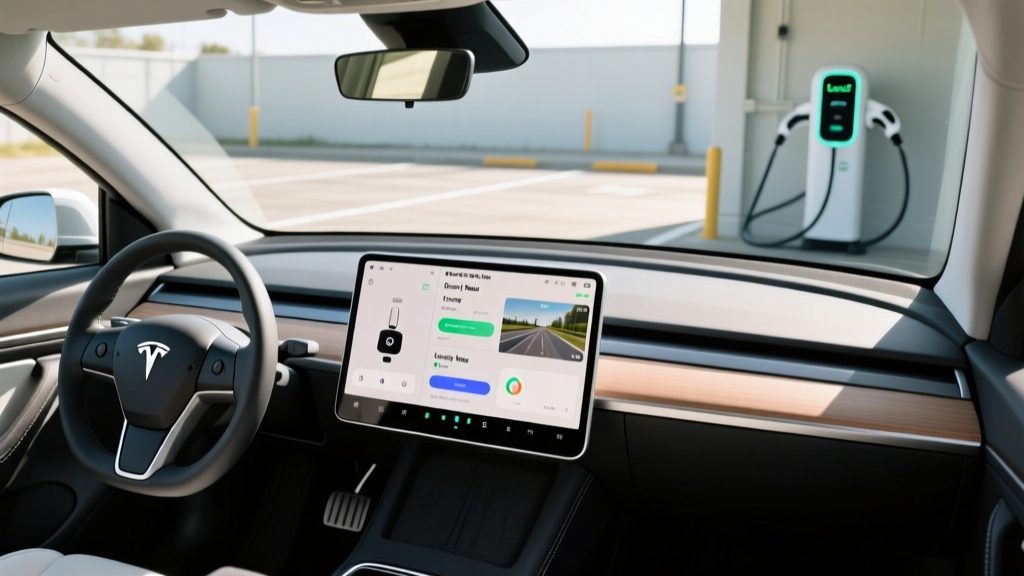
Open the Dashcam Viewer app on the Tesla touchscreen to scrub through recent clips. You can filter by RecentClips, SavedClips, or SentryClips. This is convenient for quick review but impractical for exporting or sharing.
Via USB on a Computer
Eject the USB drive and plug it into a PC or Mac. Navigate to the "TeslaCam" folder, which contains three subfolders:
- RecentClips: Rolling buffer (overwritten automatically)
- SavedClips: Manually saved or collision-triggered clips
- SentryClips: Sentry Mode events, organized by timestamp
Each clip is an MP4 file labeled with the camera position and timestamp. Use the free TeslaCam Viewer or any standard media player to watch them.
Wireless Transfer (Newer Models)
Some 2025-2026 Tesla models with HW4 support wireless clip transfer via the Tesla mobile app. Select clips in the app and download them directly to your phone over Wi-Fi — no USB removal required. This feature is rolling out incrementally via OTA updates.
Tesla Cam Recording vs. Aftermarket Dashcams
| Feature | Tesla Cam Recording | Aftermarket Dashcam (e.g., Garmin, Vantrue) |
|---|---|---|
| Camera angles | Up to 5 simultaneous | 1-3 (front, rear, cabin) |
| Resolution | 1080p-2K per camera | Up to 4K single camera |
| Parking surveillance | Sentry Mode (all cameras) | Requires hardwire kit, 1-2 cameras |
| GPS tagging | Yes (embedded in metadata) | Varies by model |
| Installation | None (built-in) | Windshield mount + wiring |
| Cloud backup | Not native (manual export) | Some models offer cloud via LTE |
| Night quality | Good (HW4 improved low-light) | Excellent (Sony STARVIS sensors) |
The verdict: Tesla cam recording wins on convenience and coverage area. An aftermarket dashcam wins on single-camera resolution and dedicated night-vision performance. Many Tesla owners run both — Tesla for the multi-angle Sentry coverage, and a 4K front dashcam for the sharpest possible forward evidence.
Real-World Tips and Common Issues
- "USB drive not supported" error: Reformat the drive in the car. Avoid drives larger than 2 TB — some users report compatibility issues.
- Missing Sentry clips: If the car loses power abruptly (12V battery failure), the final clip may not write. Keep your 12V lithium auxiliary battery healthy.
- Privacy: Tesla cam recording captures audio when the cabin camera is active. Check your state's two-party consent laws before recording conversations.
- Cold weather: In sub-freezing temperatures, Sentry Mode may not activate immediately upon parking because the cameras need to defrost. Preconditioning helps.
- Insurance acceptance: Most US insurers accept Tesla dashcam and Sentry Mode footage as evidence. Export clips promptly and back them up to cloud storage.
Frequently Asked Questions
Does Tesla cam recording drain the battery significantly?
Dashcam recording while driving has negligible impact — the system is always powered. Sentry Mode while parked draws roughly 200-300W, costing about 1-2 miles of range per hour. Over an 8-hour workday parking session, expect roughly 10-16 miles of range loss. The system auto-disables below 20% SoC to protect your driving range.
Can Tesla cam recording capture license plates clearly?
The forward telephoto camera on HW4 vehicles can capture license plates at moderate distances (roughly 30-50 feet) in good lighting. At night or at highway speeds, plate readability drops. For dedicated plate capture, a front-mounted 4K aftermarket dashcam with a narrow field of view performs better.
How long does Tesla keep Sentry Mode clips?
Clips are stored on your USB drive until the drive fills up. SentryClips are overwritten last — the system prioritizes overwriting RecentClips first. With a 128 GB drive, you can typically store 50-70 Sentry events before the oldest are replaced.
Is Tesla cam recording admissible in court?
Yes. Tesla dashcam footage includes embedded timestamps and GPS coordinates, and courts in most US jurisdictions accept it as evidence. Always preserve original files without editing, and export them as soon as possible after an incident.
Does the cabin camera record for dashcam?
The cabin camera is primarily used for driver-monitoring during FSD (Supervised) sessions. In current software versions, it does not typically appear in standard dashcam clips unless specifically triggered by a safety event. Check your software release notes, as Tesla occasionally adjusts cabin camera behavior via OTA updates.