Why Your Tesla Software Update Might Be Stuck
Tesla's over-the-air (OTA) update system is one of the brand's defining features — delivering everything from UI refinements to FSD improvements without a dealership visit. But many owners encounter delays, with their vehicle seemingly stuck on an older version while others receive the latest build. If you've been searching for how to force a Tesla update, you're not alone. While Tesla doesn't offer a single "force update" button, there are proven methods to accelerate the process and troubleshoot common blockers.
How Tesla's OTA Update System Actually Works
Unlike traditional automakers that require dealer visits for software changes, Tesla pushes updates wirelessly to its entire fleet in phased rollouts. These rollouts typically follow a pattern:
- Vin-based targeting: Tesla releases updates to specific VIN ranges first, often starting with newer vehicles or those with specific hardware (HW4 vs HW3).
- Geographic batching: Updates may roll out regionally before going global.
- Wi-Fi dependency: Tesla prioritizes Wi-Fi downloads to reduce cellular data costs and improve reliability.
- Safety validation: Each vehicle must pass a pre-installation check before the update begins.
According to Tesla's official support page, the company states: "Software updates are sent to your vehicle when they're ready. You cannot manually request or force an update ahead of schedule." However, there are legitimate steps to ensure your vehicle is optimally positioned to receive updates as quickly as possible.
7 Proven Methods to Speed Up Your Tesla Update
1. Ensure Strong Wi-Fi Connectivity
Tesla vehicles prioritize Wi-Fi for downloading updates. If your car is parked outside Wi-Fi range, it may attempt to download via cellular — a slower process that Tesla often deprioritizes for large update packages. Park within strong Wi-Fi coverage (ideally within 30 feet of your router) and ensure your home network isn't throttling the connection.
2. Keep Your Vehicle in 'Advanced' Update Mode
Navigate to Controls > Software > Software Update Preferences and select Advanced instead of Standard. This setting tells Tesla's servers that you want updates as soon as they're available for your VIN, rather than waiting for broader fleet validation.
3. Maintain Adequate Battery Charge
Tesla requires a minimum state of charge (typically 20% or higher) before initiating an update. If your battery is too low, the update will be postponed. For best results, keep your vehicle plugged in or above 50% SoC when an update is pending.
4. Avoid Sleep Mode Interruptions
When your Tesla enters sleep mode (typically after 15-30 minutes of inactivity), it may pause background downloads. If you know an update is available but hasn't started installing, try sitting in the vehicle with the touchscreen active to keep it awake during the download phase.
5. Check for Pending Updates Manually
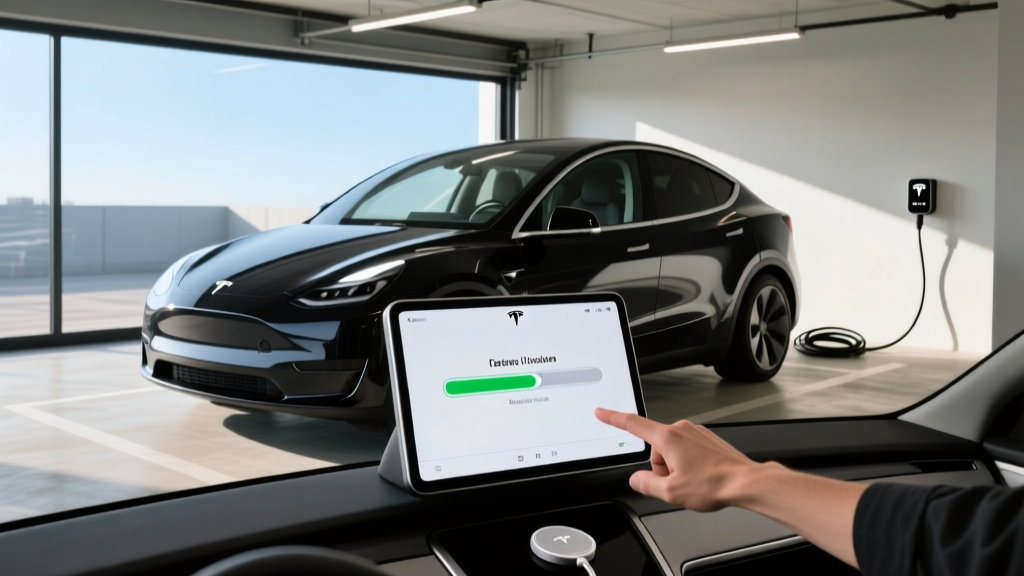
Go to Controls > Software to check if an update is available but hasn't been scheduled. Sometimes the download completes but the installation is waiting for specific conditions (vehicle parked, battery charged, not in use).
6. Perform a Soft Reset
If your vehicle appears stuck on an old version, a soft reset can sometimes trigger a re-check with Tesla's update servers. Hold both scroll wheels on the steering wheel for approximately 10 seconds until the touchscreen goes black and the Tesla logo reappears. This doesn't erase any data but refreshes the vehicle's network connections.
7. Contact Tesla Support
If you're significantly behind the current fleet version (e.g., your car is on 2025.44 while others have 2026.8), open the Tesla app and submit a service request mentioning your current software version. Tesla support can sometimes push a specific build to your VIN manually, though this is typically reserved for bug fixes or safety-related updates.
Understanding Tesla Software Version Numbers
Tesla's versioning system follows a Year.Week.Minor format. For example, version 2026.8.2 means:
- 2026: The year the base code was developed
- 8: The week of that year when the build was finalized
- 2: A minor revision or patch number
Being a few weeks behind the latest version is normal and doesn't indicate a problem. Tesla's phased rollout means some vehicles receive updates 4-8 weeks after others. Major version jumps (e.g., 2025.44 to 2026.8) may take longer to reach all vehicles due to additional validation requirements.
What to Do When an Update Fails or Gets Stuck
Occasionally, an update may fail mid-installation or appear frozen. Here's how to handle common scenarios:
Stuck at a Specific Percentage
If the installation progress bar hasn't moved for more than 30 minutes, the update may have encountered an error. Perform a soft reset (both scroll wheels) and allow the vehicle to reconnect. The update will typically resume or restart automatically.
"Update Failed" Message
This usually indicates a network interruption or insufficient battery charge. Ensure Wi-Fi connectivity, plug in the vehicle, and wait 24 hours for Tesla's servers to reschedule the installation.
Vehicle Won't Start After Update
In rare cases, a failed update can leave the vehicle in a non-operational state. If a soft reset doesn't resolve the issue, contact Tesla Roadside Assistance immediately. The vehicle may require a manual reflash at a service center.
Common Myths About Forcing Tesla Updates
⚠️ Debunking Update Myths
- Myth: Disconnecting the 12V battery forces an update. Fact: This can cause system errors and void warranty coverage.
- Myth: Third-party apps can trigger updates. Fact: Only Tesla's servers control OTA distribution.
- Myth: Driving more miles accelerates updates. Fact: Update timing is VIN-based, not mileage-based.
- Myth: Factory resetting the touchscreen forces updates. Fact: This erases personal settings but doesn't affect update scheduling.
Tesla Update Timing: What to Expect in 2026
Based on fleet data and owner reports, here's a realistic timeline for Tesla software updates in 2026:
| Update Type | Typical Rollout Duration | Notes |
|---|---|---|
| Minor UI/bug fixes | 1-2 weeks | Smallest packages, fastest deployment |
| Feature additions (e.g., new app, UI overhaul) | 3-6 weeks | Phased by hardware generation and region |
| FSD (Supervised) updates | 4-12 weeks | Most heavily validated; VIN-specific targeting |
| Major version jumps (e.g., 2025.x to 2026.x) | 6-16 weeks | Extensive safety validation required |
When to Contact Tesla Service About Updates
While most update delays resolve naturally, contact Tesla service if:
- Your vehicle is more than 3 major versions behind the current fleet release
- You've experienced multiple consecutive update failures
- Your vehicle displays a persistent "Update Available" notification that won't install
- You notice new bugs or performance issues immediately following an update
You can reach Tesla support through the mobile app (Account > Support) or by calling 1-800-662-7232. For software-specific issues, requesting a remote diagnostic session often resolves problems without a service center visit.
Frequently Asked Questions
Can I force a Tesla update by disconnecting Wi-Fi?
No. Disconnecting Wi-Fi forces the vehicle to use cellular, which Tesla deprioritizes for large updates. This will likely slow down your update, not accelerate it.
Does having FSD (Supervised) get me updates faster?
Not necessarily. FSD updates follow their own validation timeline and may actually take longer to reach your vehicle due to additional safety checks. However, FSD-equipped vehicles are sometimes prioritized for FSD-specific builds.
Why did my friend's Tesla get the update before mine?
Tesla's rollout is VIN-based and hardware-specific. Differences in production date, hardware version (HW3 vs HW4), region, and even factory of origin can affect update timing.
Will a software update affect my range or efficiency?
Minor fluctuations are possible as the vehicle recalibrates battery management systems. Significant range changes are rare and usually temporary. If you notice a persistent drop exceeding 5%, contact Tesla service.
Can I downgrade to a previous software version?
No. Tesla does not support software downgrades. Once an update is installed, you must wait for a future build to address any issues.
How much data does a Tesla update use?
Update sizes vary from 50MB (minor patches) to 4GB+ (major version jumps). On Wi-Fi, this is typically not a concern. On cellular, large updates may take several hours and could be subject to your mobile data plan limits if using a hotspot.
Is it safe to drive during a software update?
No. Tesla requires the vehicle to be parked and in "Park" mode during installation. Attempting to drive will cancel the update and may require a restart of the installation process.
What happens if the power goes out during an update?
If your vehicle is plugged into a charger, it will continue the update using battery power. If not plugged in and the battery is low, the update may fail and require a service center visit to reflash the system.